Generative Fill
Upload any image, describe what should change, and fill missing or unwanted areas for ads, listings, posts and layouts.
Free outputs may appear in the public gallery. Learn more
Create ad-ready images from imperfect visuals
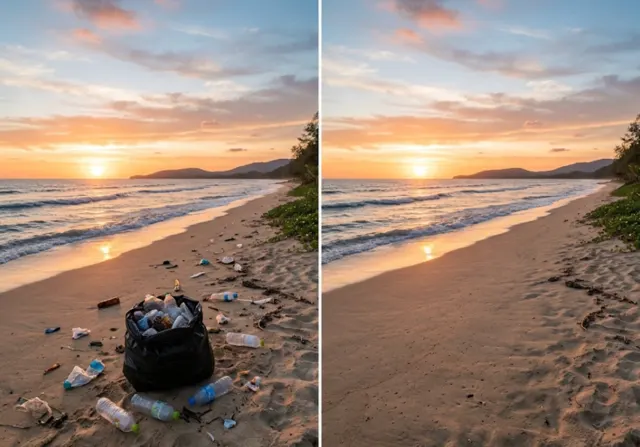
Why let small flaws hold back your campaign? Describe what should fill or replace an area and the AI paints it in with matching light and detail, for ads, stores and posts.
Try generative fill free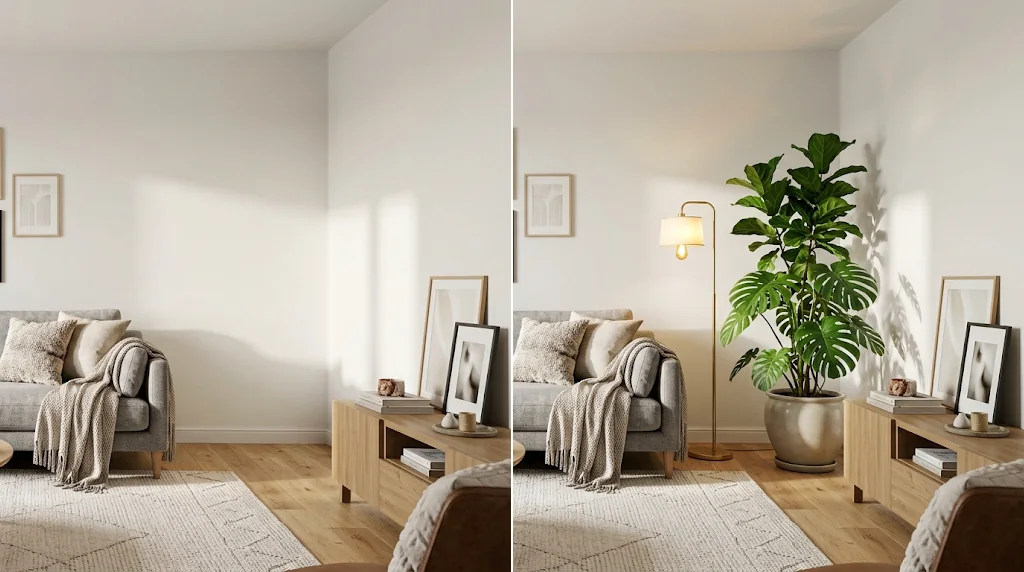
Prompt-controlled edits
Change parts of an image by describing them.
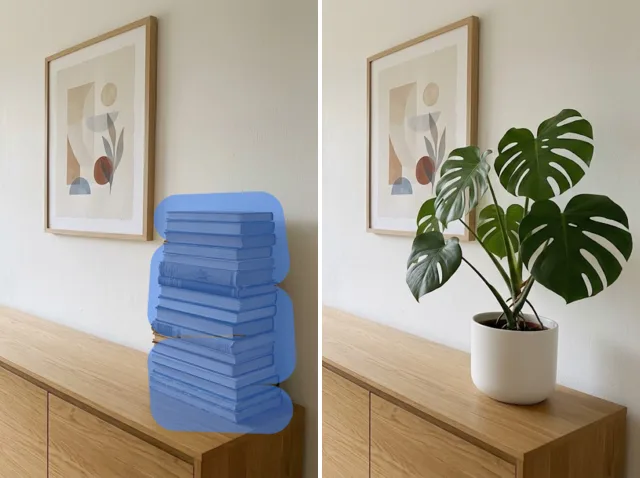
Realistic area repair
Restore empty, damaged or messy spots naturally.
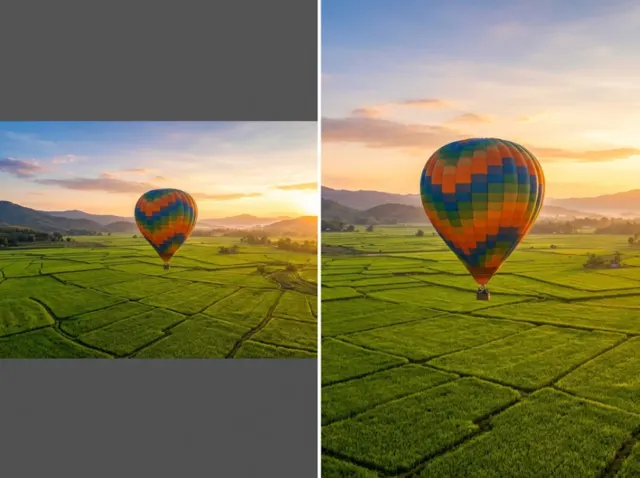
Layout-ready fill
Extend edges and empty space for ads and posts.
Rebuild gaps with realistic detail
Describe what belongs in a blank, damaged or unwanted area and it is filled with light-aware detail.
Try generative fill free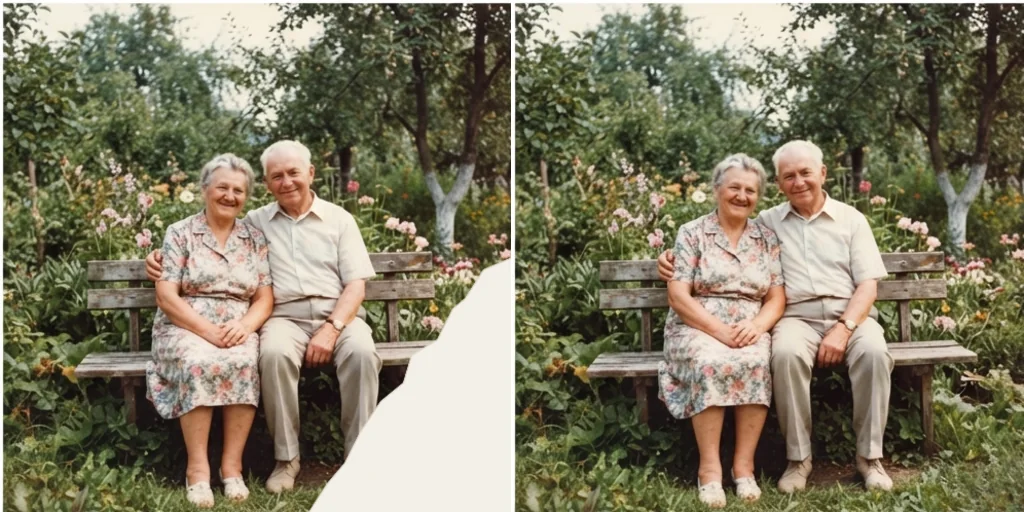
Remake campaign images without reshoots
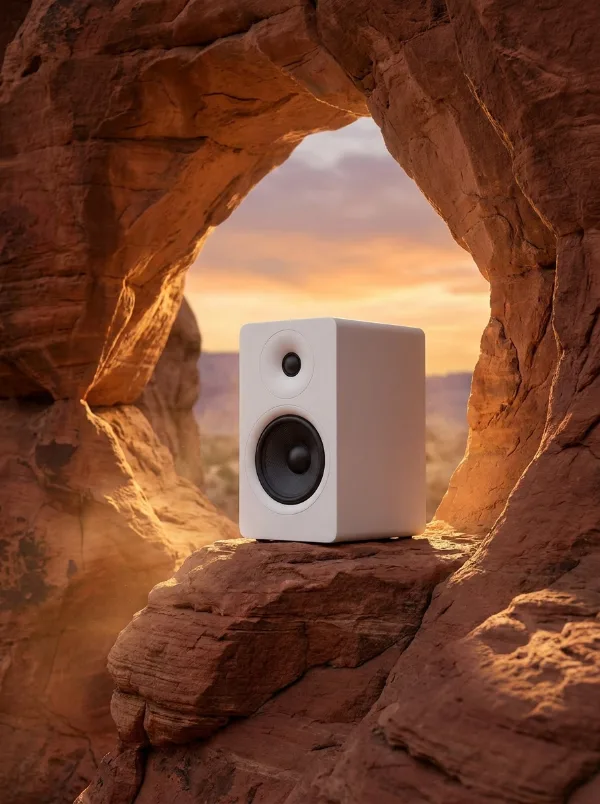
Swap props, backgrounds or seasonal details for new campaigns.
Try generative fill free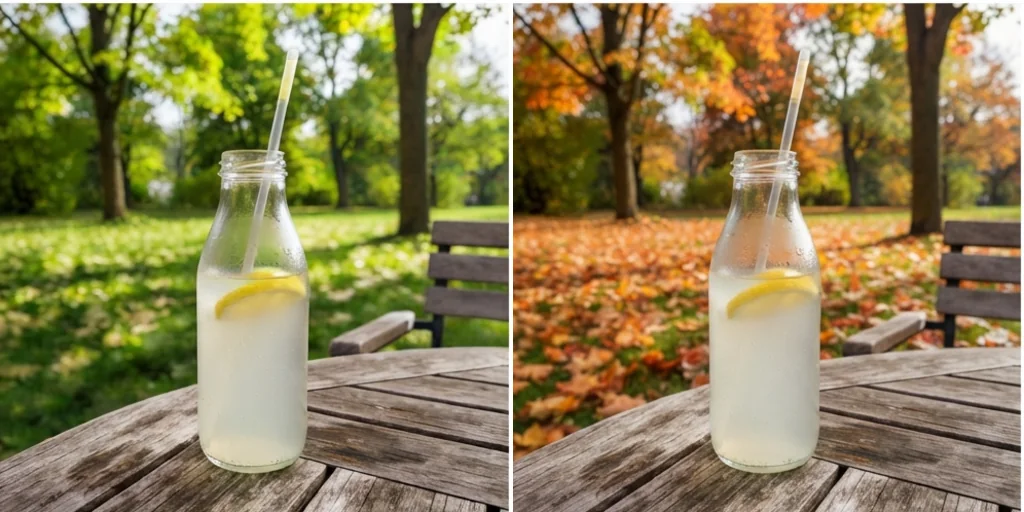
Extend cropped photos for more placements
Complete missing edges and add background for banners and squares.
Try generative fill free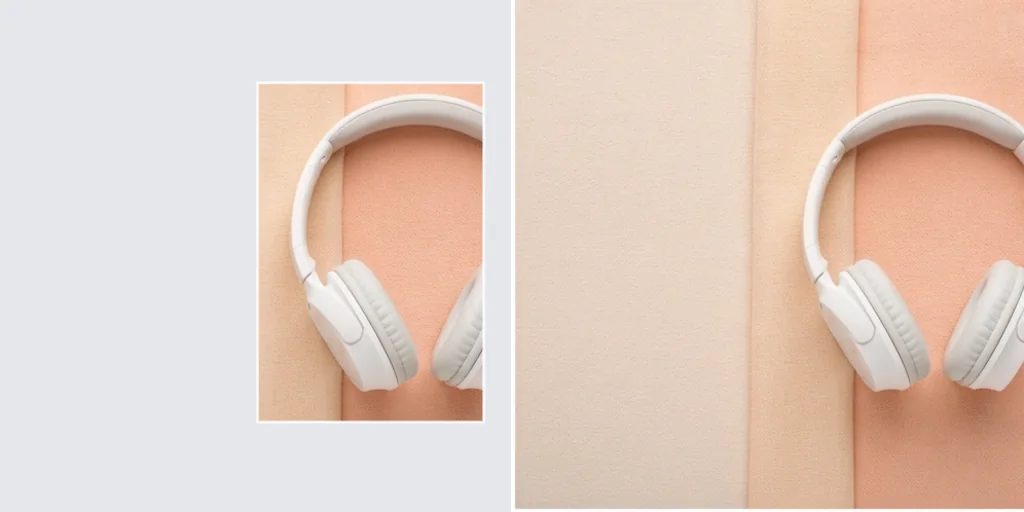
Remove distractions naturally
Clean up clutter and awkward objects while the image stays natural.
Try generative fill free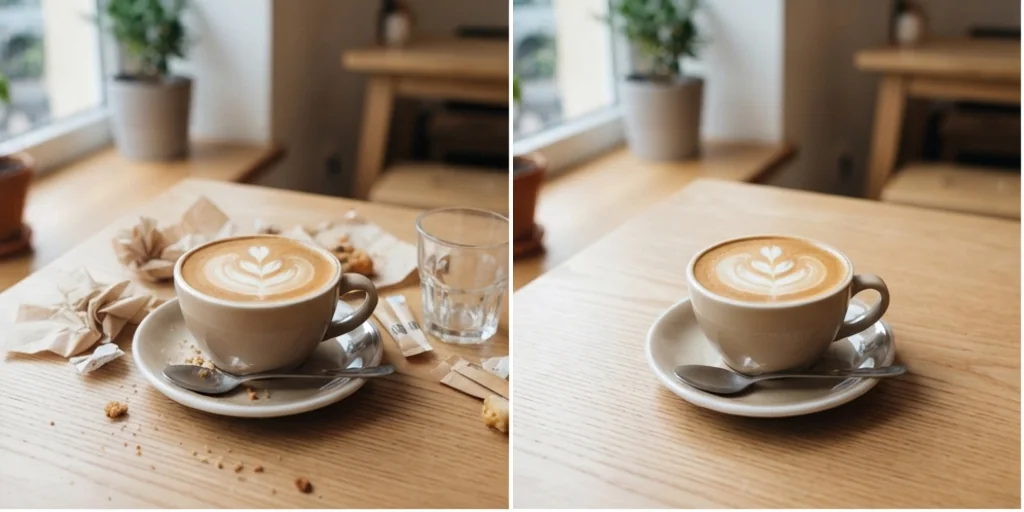
More ways to use generative fill
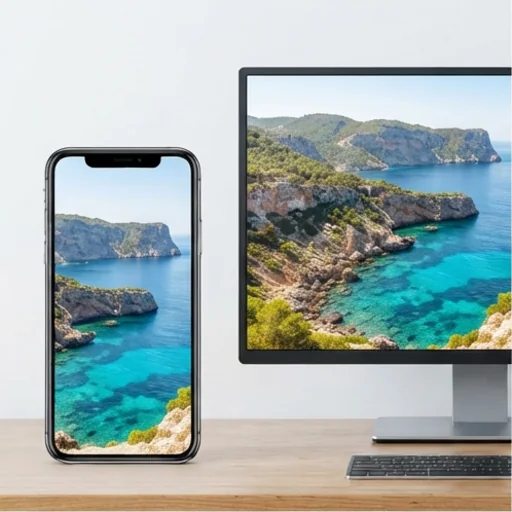
Make every photo fit
Complete edges and fill gaps for any placement.
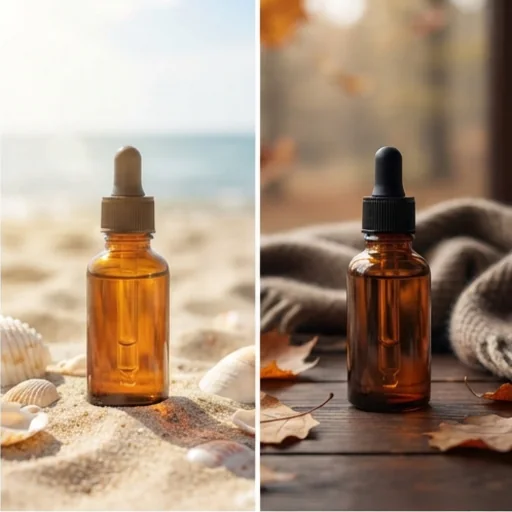
Refresh creative faster
New props and seasonal cues for A/B tests.
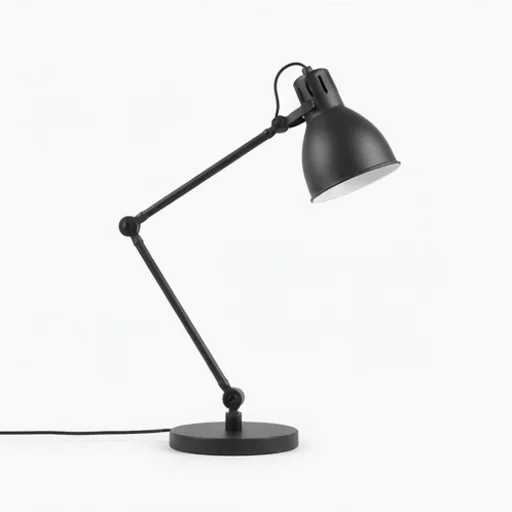
Clean product shots quickly
Repair crops and empty corners before launch.
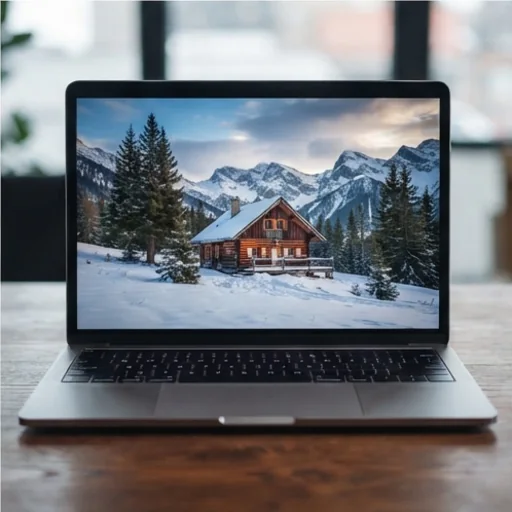
Build wider hero images
Wider art for website heroes.
How to use generative fill on Jitura
- 1
Step 1: Add your image
Add the image with the + button.
- 2
Step 2: Describe the change
Describe what should fill or replace which area.
- 3
Step 3: Create and download
Create and download the polished image.
Discover other AI image tools on Jitura
FAQs
What is generative fill?+
An AI editing method that fills, replaces or extends parts of an image from a text description, matching the rest of the picture.
How do I use it?+
Add the image, describe what should change and where, and create. For precise areas, use Image Inpaint and brush the spot.
Can I use it on AI-generated images?+
Yes. Make a picture with the AI Image Generator, then refine parts of it with generative fill.
What is the best generative fill tool?+
One that keeps the untouched parts exactly the same. Jitura's editor changes only what you describe, and you can switch models in the same box.
Can it help product photos?+
Yes: clean scenes, replace distractions and extend backgrounds; remove objects first with the Object Remover if needed.
Does it work with other tools?+
Yes. Combine it with the Image Upscaler, Object Remover and Image Relight to polish the result.
Fix your next campaign image with generative fill
Don't let flawed images slow your launch.
Try generative fill