Screenshot Editor
Edit, clean, annotate and optimise screenshots for tutorials, support, product docs and social posts in seconds.
Free outputs may appear in the public gallery. Learn more
Turn raw screenshots into clearer visuals
Need to explain something but your screenshot shows too much? Describe the change and the AI updates text, blurs private details, adds highlights and tidies the layout.
Edit a screenshot free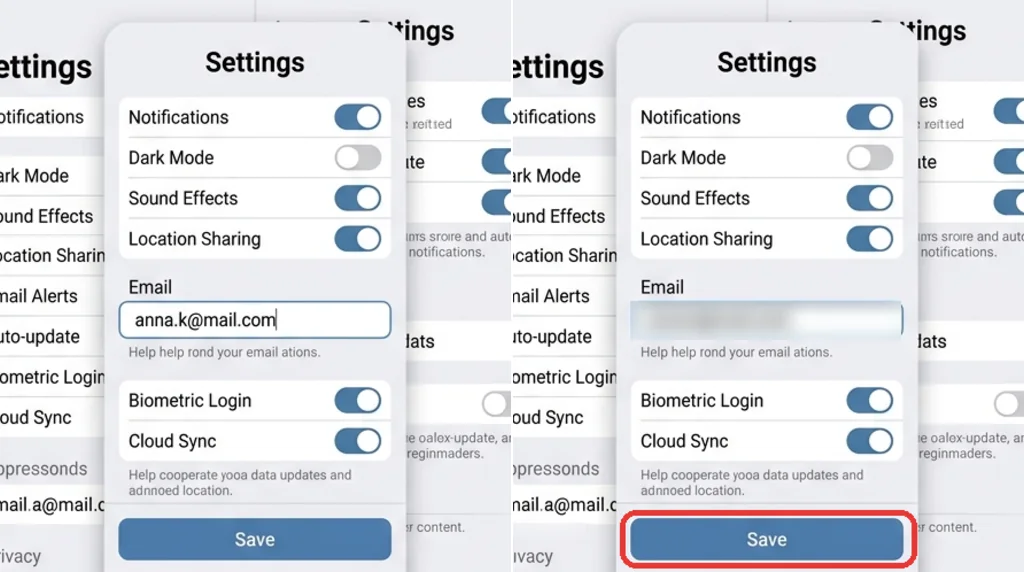
Edit screenshot text fast
Fix wording and update outdated labels.
Highlight what matters
Arrows, boxes and labels that guide the eye.
Protect private details
Blur emails, phone numbers and account data.
Annotations that are easy to follow
Arrows, highlights, boxes and numbered steps for tutorials and walkthroughs.
Edit screenshots free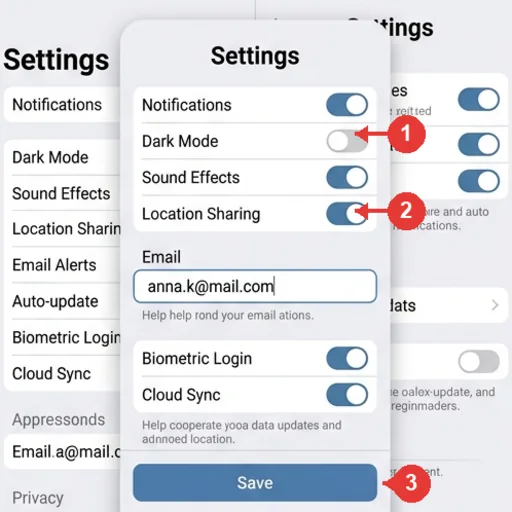
Privacy blur before you share
Blur emails, phone numbers, addresses and order numbers.
Edit screenshots free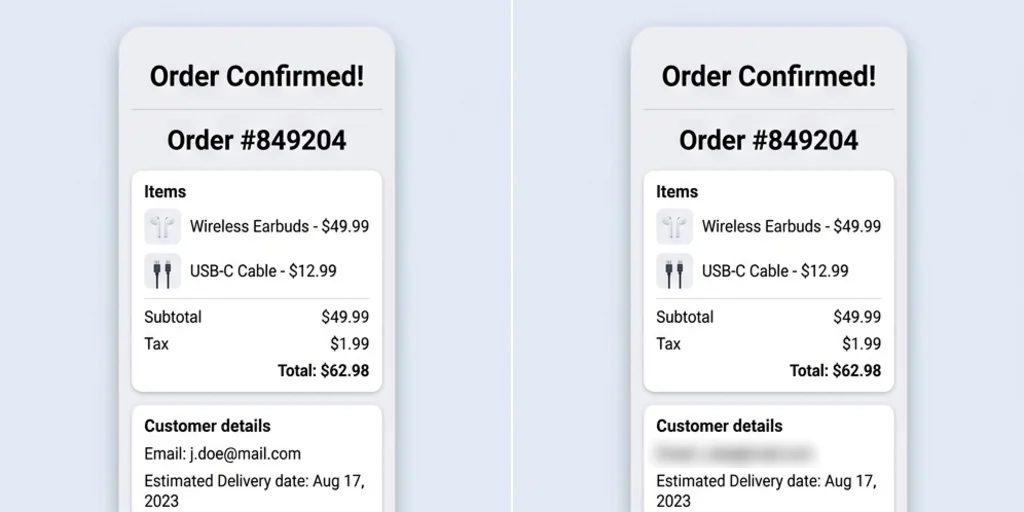
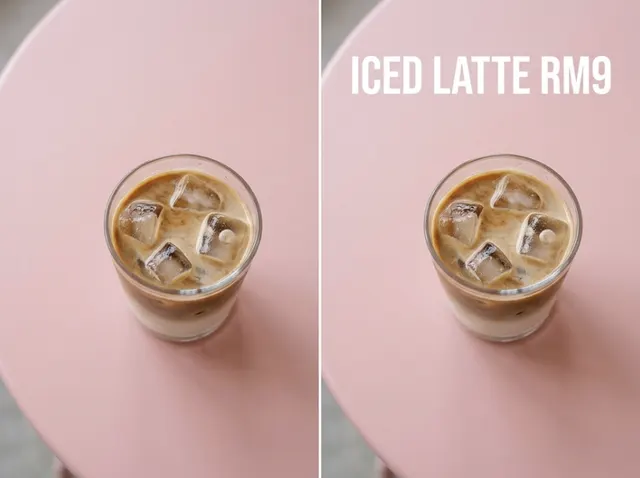
Natural clean-up and content edits
Update prices, labels and placeholder text so the screenshot looks original.
Edit screenshots free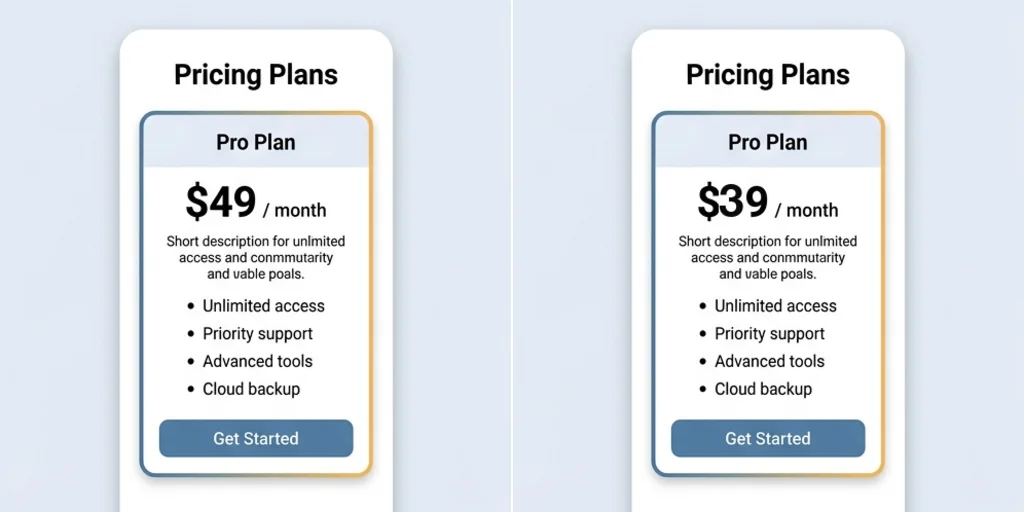
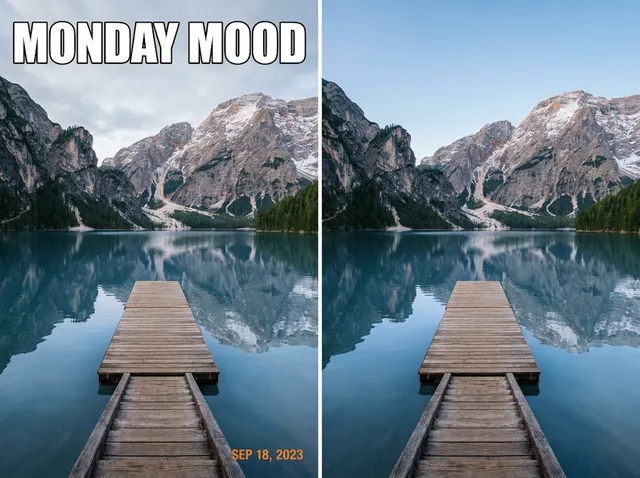
Optimised for every format
Crop and frame screenshots for posts, docs and slides.
Edit screenshots free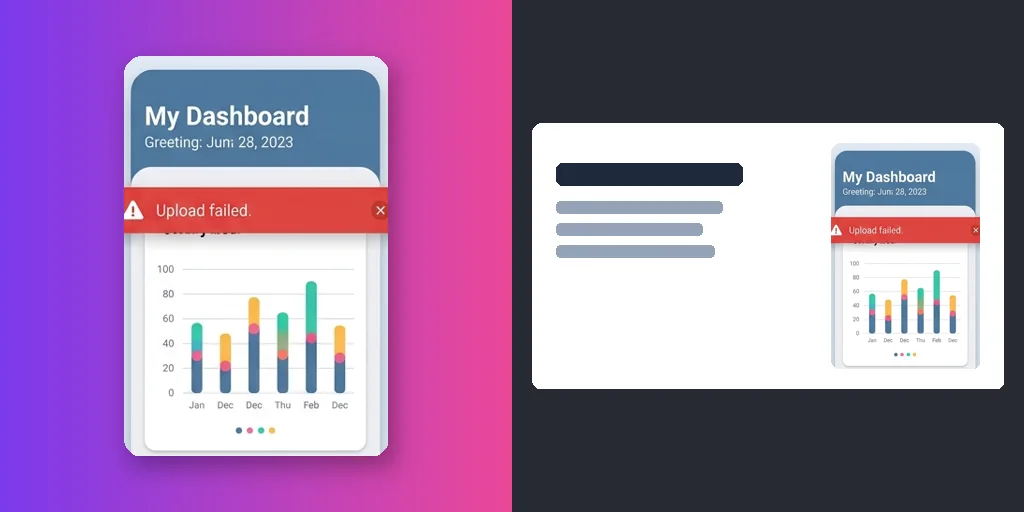
A screenshot editor for real work and social moments
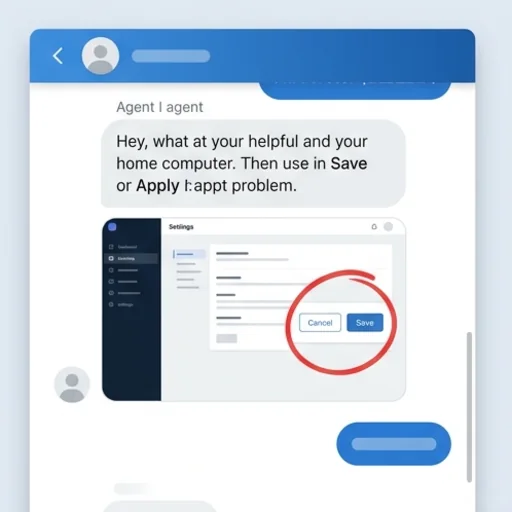
Make answers easier to follow
Clear screenshots for support replies.
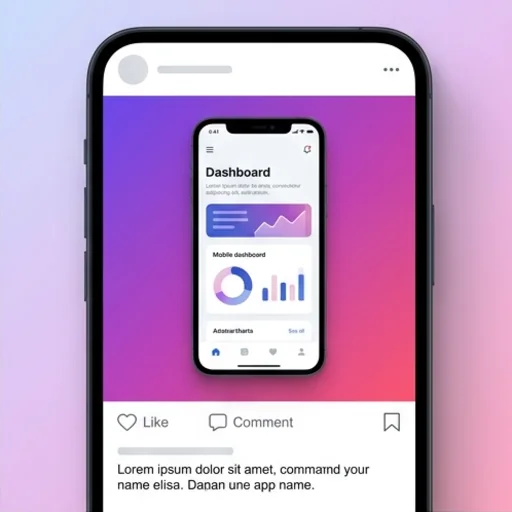
Fit fast-moving feeds
Clean, resized screenshots for launch updates.
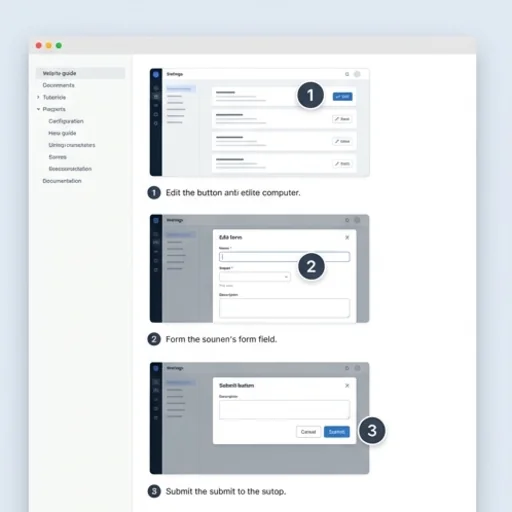
Turn captures into instructions
Step labels and arrows for guides.
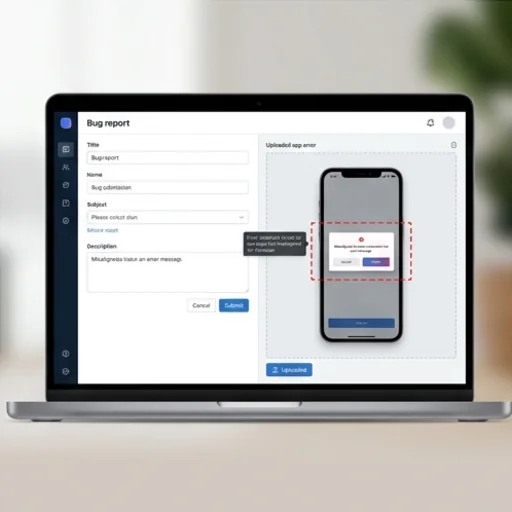
Show the issue clearly
Highlight errors for bug reports.
How to edit a screenshot with Jitura
- 1
Step 1: Add the screenshot
Add the screenshot with the + button.
- 2
Step 2: Describe the edit
Write the text change, blur, clean-up or marks you need.
- 3
Step 3: Create and download
Create and download the edited screenshot.
Discover other AI image tools on Jitura
FAQs
What is a screenshot editor?+
An image tool for editing screenshots: changing text, blurring private data, adding highlights and cleaning up the layout.
How do I edit a screenshot online?+
Add it to the box, describe the edit and create.
What is screenshot editing useful for?+
Support replies, tutorials, product docs, bug reports, presentations and social posts.
Can I update outdated UI text?+
Yes. Describe the new wording and it is rewritten in the same style. Never alter screenshots to mislead, such as fake receipts, messages or account balances.
Can I use the screenshot editor for free?+
Yes. Every signed-in account gets free daily operations, and each run uses one. Paid plans add more operations.
Edit screenshots faster and share clearer visuals
Clean, mark, blur and update screenshots online.
Try the screenshot editor