Content creators
Reuse visuals at larger sizes
Enlarge thumbnails, blog graphics, artwork and channel banners that feel too small, so your visuals stay sharp in every layout and format you publish.
Model
Upload Image*
Click to upload an image
We accept JPEG, PNG, or WEBP formats up to 10MB.
Scale
Same size as your photo, with sharper detail.
Uses 1 daily image generation.
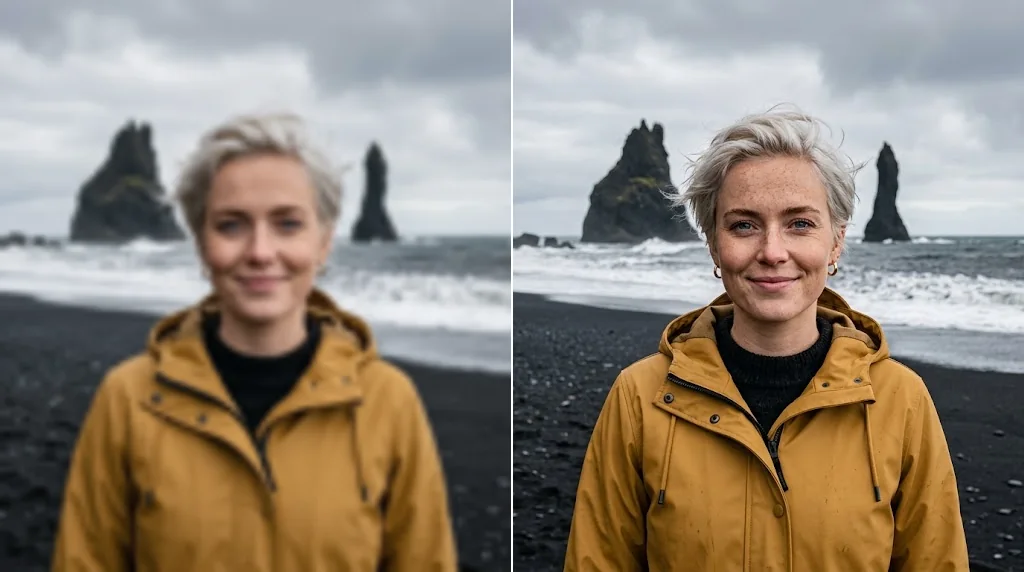
Turn small, pixelated pictures into high-resolution visuals. Upload a photo and Jitura's AI image upscaler enlarges it up to 16X in seconds, for portraits, artwork, product photos, social graphics and more, so every image looks sharp wherever it appears.
Try the AI image upscalerMake low-resolution images big enough for large screens, printing and sharing.
Sharpen detail and remove pixelation without any manual retouching.
Subjects, framing and colours stay the same as the image gets larger.
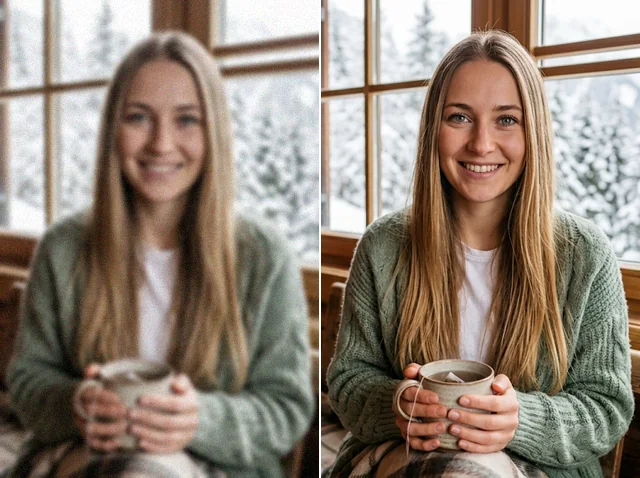
The upscaler rebuilds texture, facial features, hair and surfaces instead of simply stretching pixels. Upscale AI-generated faces or your own portraits for close-ups with natural detail that holds up on large screens.
Upscale images free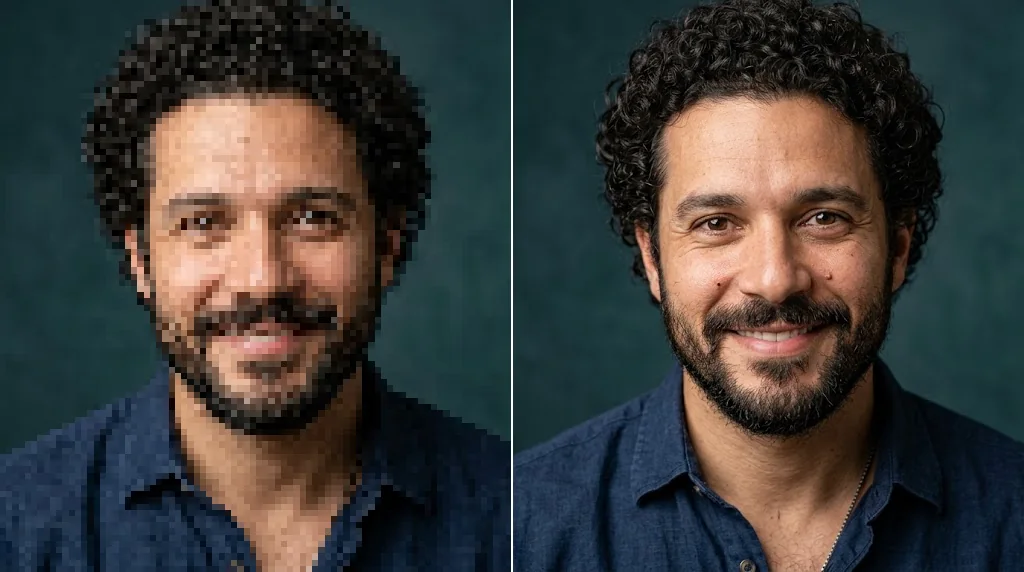
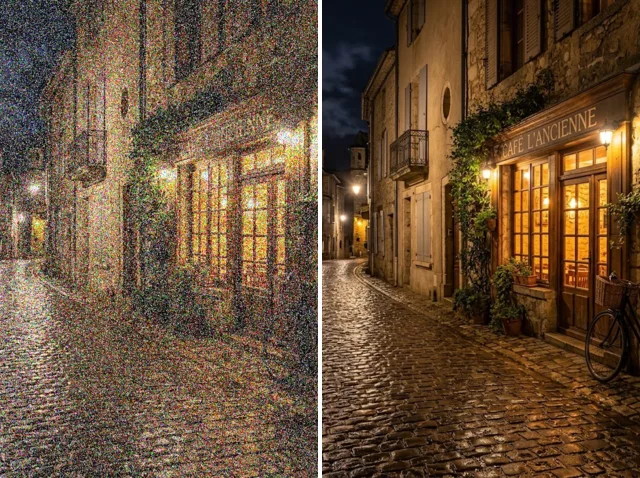
Digital noise, JPEG blocks and compression marks are reduced as the resolution goes up. Clean up artwork in one step and spend your time on composition and the final polish instead of rework.
Use the image upscaler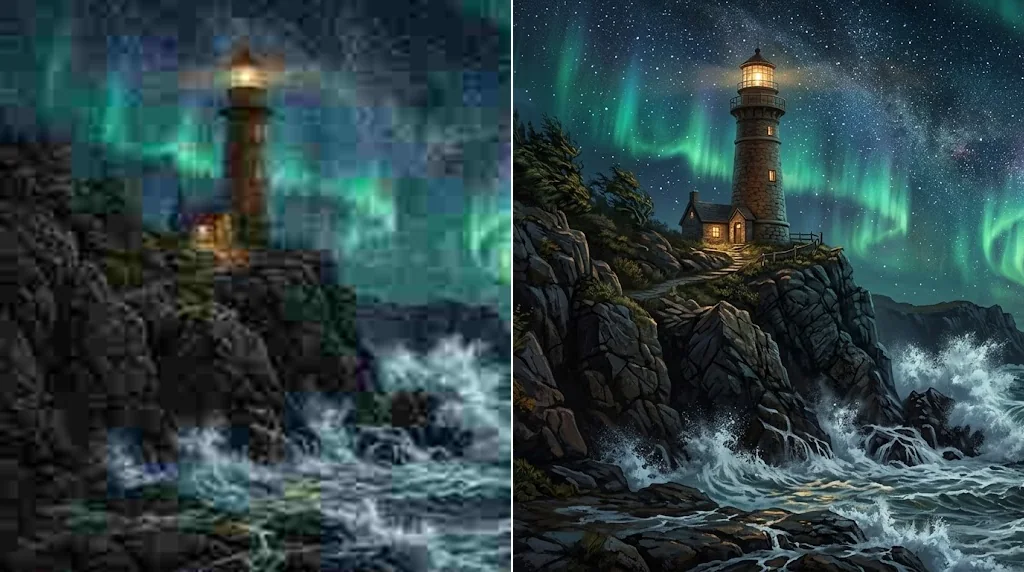
Outlines, architectural lines, illustration contours and logos stay clean when you enlarge an image, so large-format visuals keep their character and your brand stays recognisable.
Try the free upscaler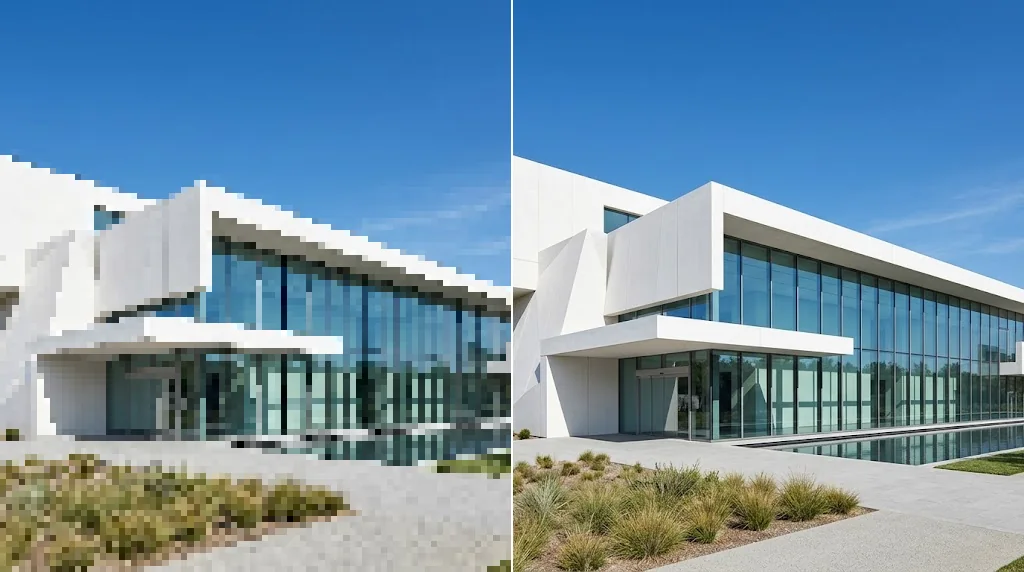
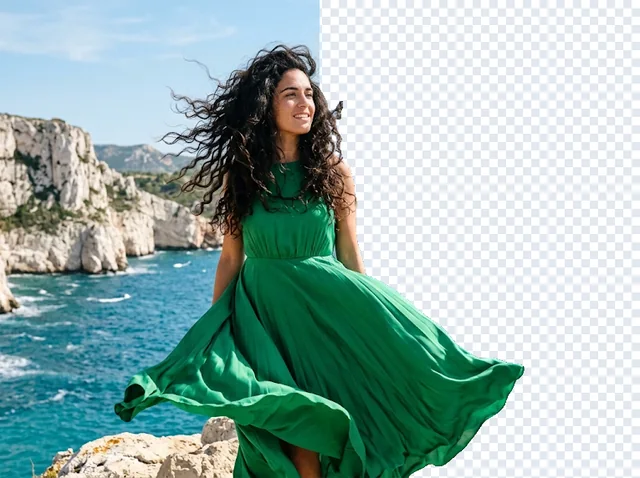
Get usable resolution back from a small part of a bigger photo. Reframe your subject for posts, thumbnails or tight layouts and try more compositions without losing sharpness.
Upscale a cropped photo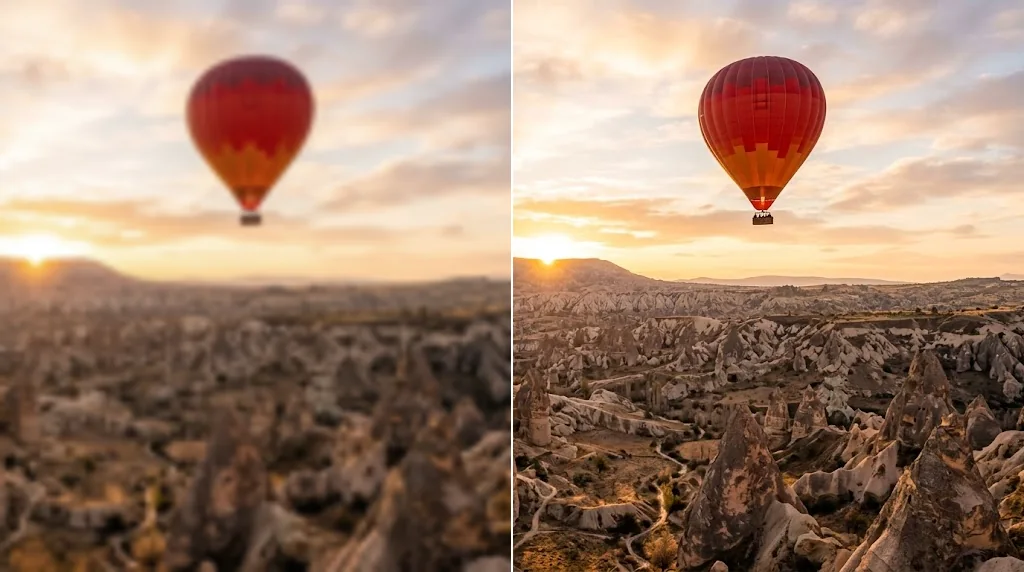
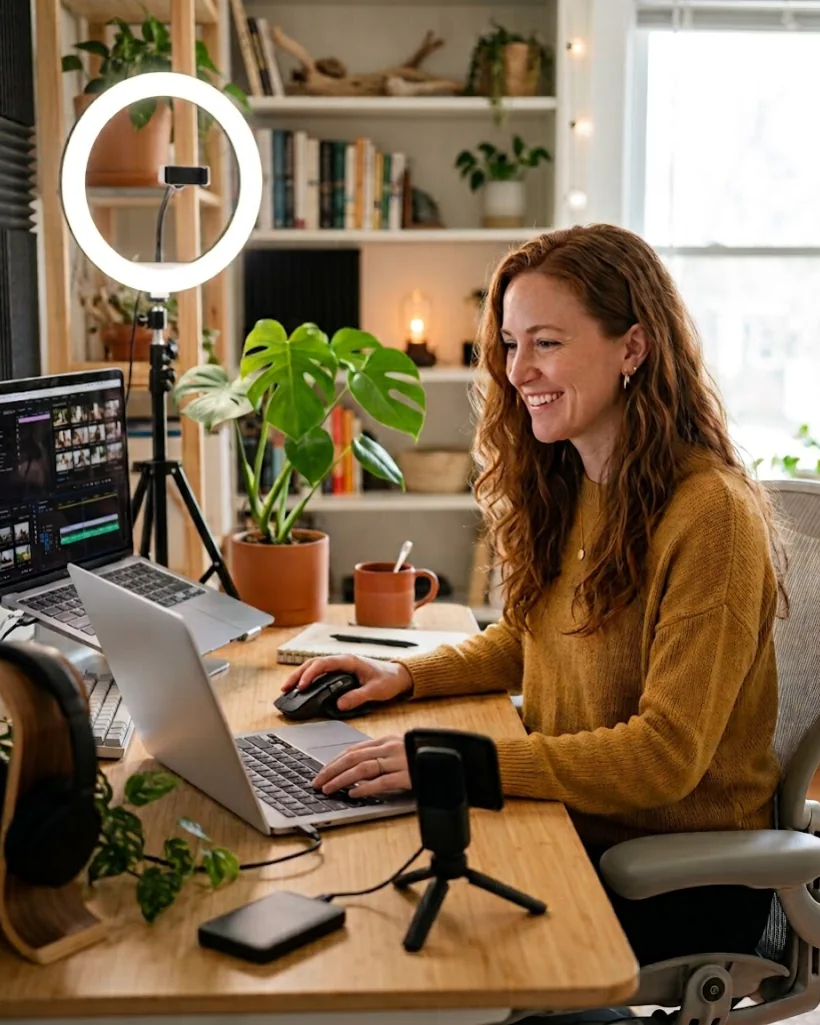
Enlarge thumbnails, blog graphics, artwork and channel banners that feel too small, so your visuals stay sharp in every layout and format you publish.
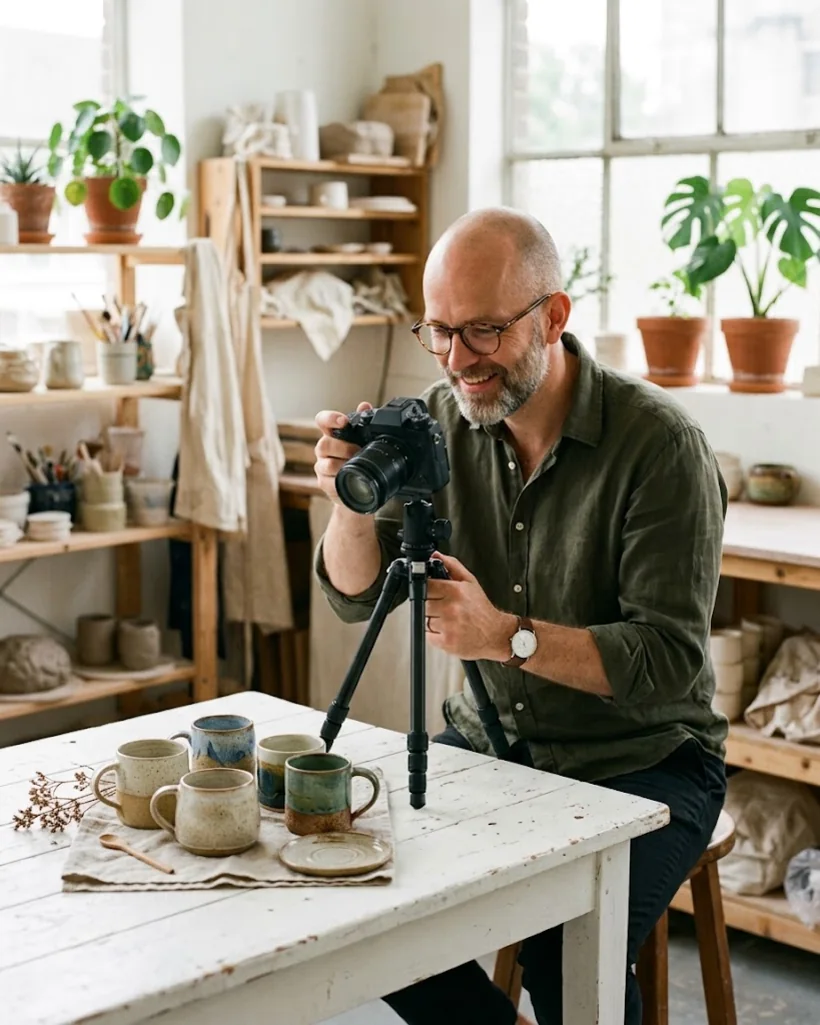
Enlarge product photos for store pages, zoom views and ads. Shoppers see more detail at larger sizes and feel more confident about what they buy.
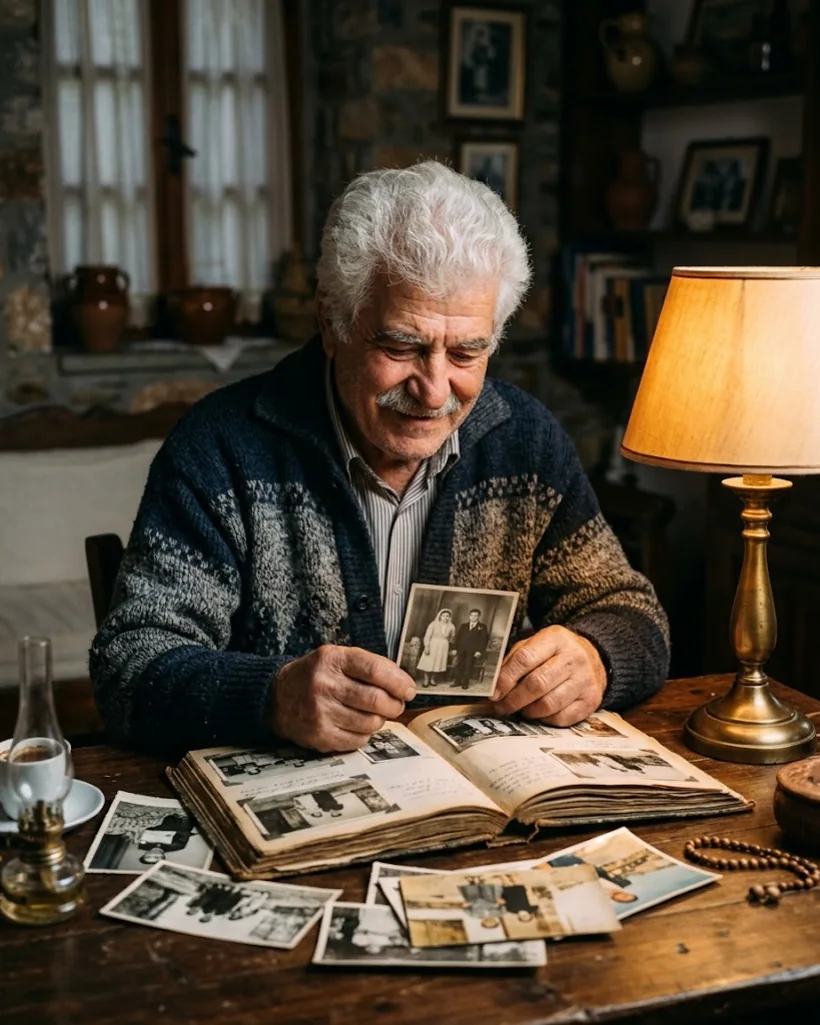
Give old family portraits, scanned prints and personal collections more usable detail for modern screens, digital archives or printing.
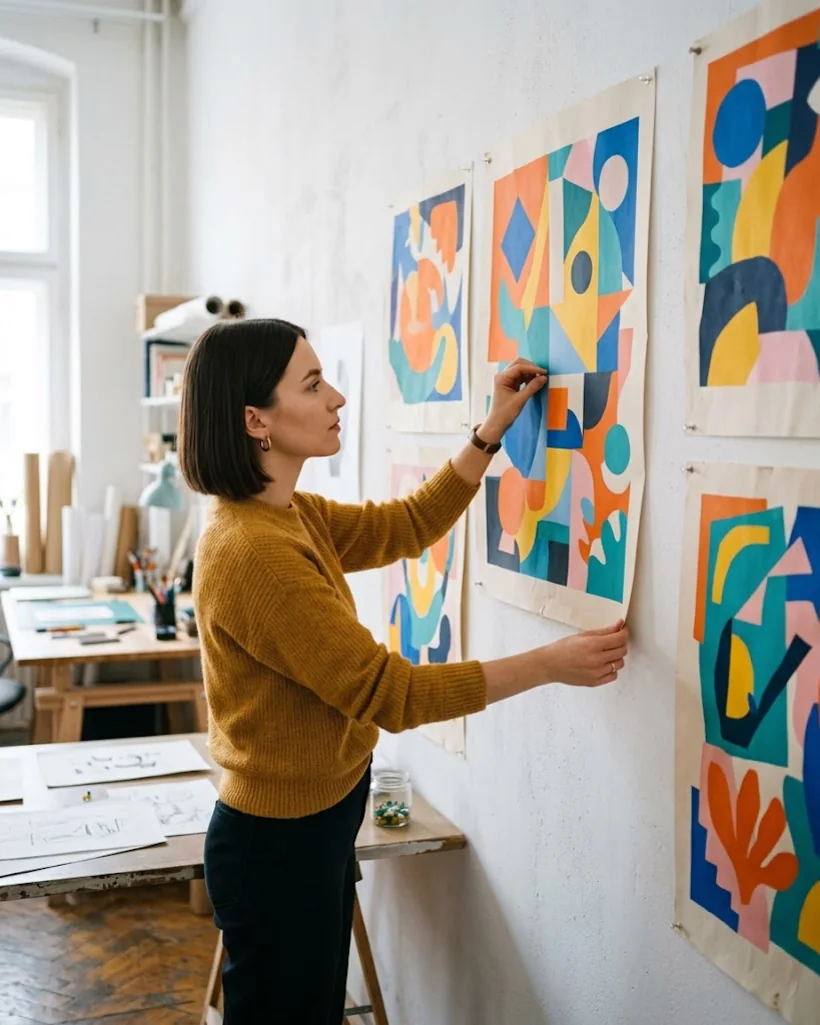
Prepare posters and promotional graphics for bigger placements. Adapt one approved visual to more digital and print sizes without redesigning it.
Step 1: Upload your image
Add the image you want to enlarge and improve.
Step 2: Choose your upscale level
Pick a model and a scale up to 16X for the resolution you need.
Step 3: Download your result
Save the upscaled image for sharing, design work, viewing or printing.
Go from a rough idea to a finished asset in one place: generate, edit, enhance and animate with tools built for real creative work.
Turn text into images
Describe a scene and get photorealistic or illustrated results in seconds.
Make platform-ready assets
Posters, banners and flyers sized for social posts, ads and print.
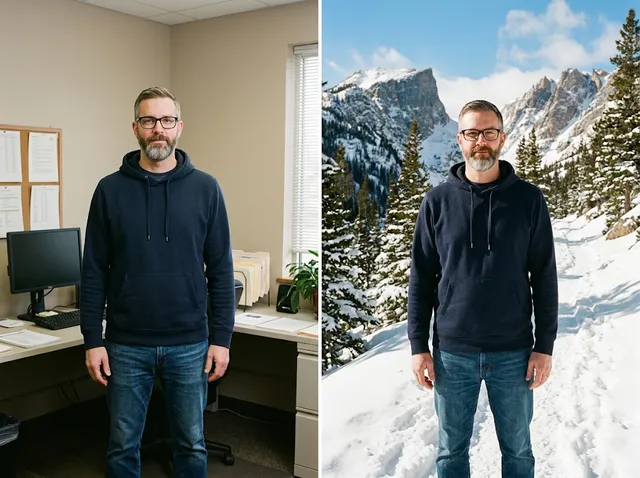
Transform photos
Restyle or change the background of a photo you already have.
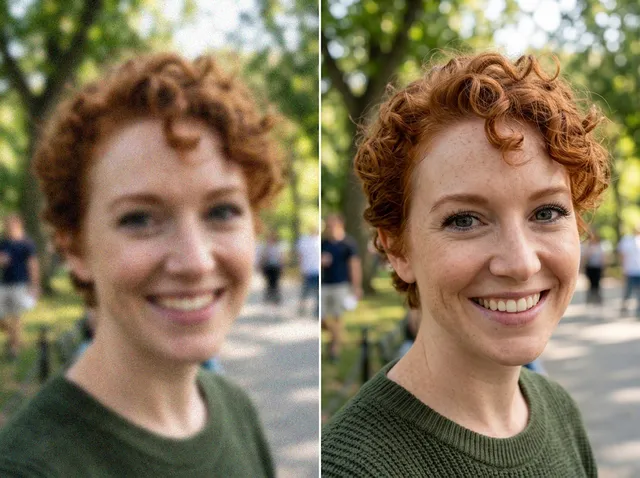
Retouch and enhance
Sharpen faces, remove clutter and upscale images for print.
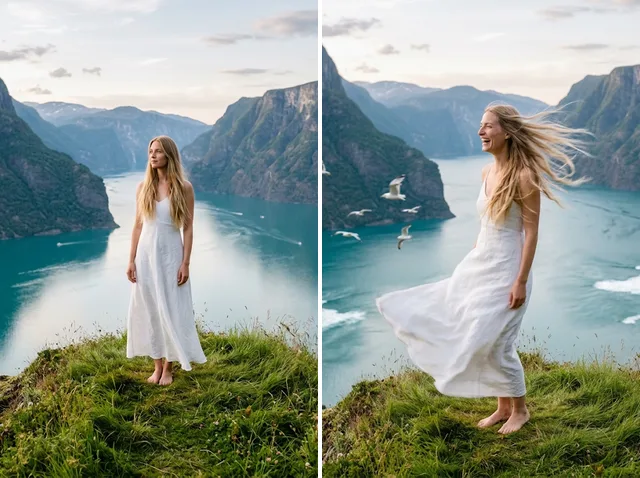
Bring stills to motion
Animate a finished artwork into a short video clip.
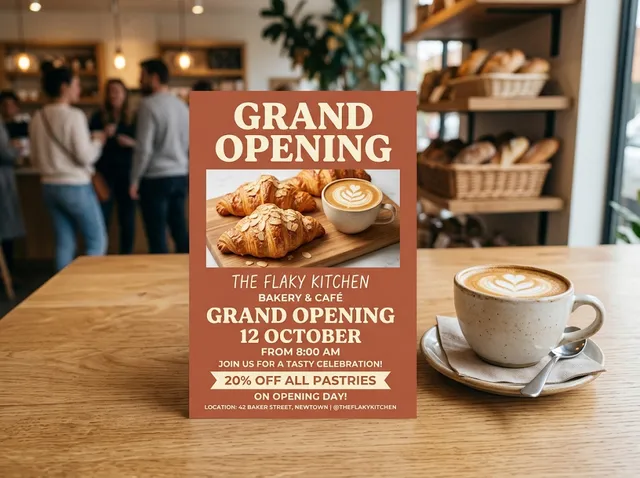
From brief to final asset
Chat with the image, one change at a time, until it is right.
It makes an existing image larger and clearer. Instead of stretching pixels like a normal resize, the AI studies the picture and rebuilds the fine detail, so the bigger version looks sharp rather than soft or blocky.
It is quick and simple: upload a picture, choose a scale and press Create. You can pick between two models, see the exact output size before you start, and download the result without any editing software.
Upload the image and choose a scale. The model enlarges it and refines edges, texture and faces on the way. When it is done you can download the larger image or keep editing it with another Jitura tool.
Yes. Every signed-in account gets free daily operations. A Jitura Enhance run at Original, 2X or 4X uses one; Topaz Enhance and 8X or 16X runs use two because they cost more to process. Paid plans add more operations.
Choose Original, 2X, 4X, 8X or 16X. Results are capped at 8,192 pixels on the long side, and Topaz Enhance goes up to 4X, so the panel always shows the exact output size before you press Create. How much detail comes back depends on the source image.
JPEG, PNG and WebP up to 10MB. Upload the file, choose how much to enlarge it, then download the higher-resolution result as a JPEG.
Most images are ready in 10 to 60 seconds. Very large results at 8X or 16X, and Topaz Enhance, can take up to a few minutes.
Yes. The page works in any modern mobile browser. The controls stack above the preview, so you can upload a photo, pick a scale and download the result on a small screen.
Your image is sent to the upscaling model only to make your result, and the result is kept in your browser for you to download. See the Privacy Policy for what Jitura stores and for how long.
Yes. Small, soft or scanned old photos come back larger and clearer. For faded colour, scratches or heavy blur, try the Image Enhancer as well.
Files up to 10MB in JPEG, PNG or WebP. Large photos are scaled to 1024 pixels on the long side before upscaling, and results are capped at 8,192 pixels on the long side.
No. Jitura does not add a watermark to upscaled images. If the original already has one, remove it first with the AI Watermark Remover.
The subject, framing and colours stay the same, and the aspect ratio never changes. When the source is very small or blurry the AI has to invent some fine detail, so tiny features can look slightly different from the original.
Both pages share the same models and scales. Upscaling is about making an image bigger while keeping it sharp; enhancing is about fixing blur, grain, noise and dull colour, whether or not the size changes.
Turn low-resolution photos into sharp visuals that stand out in every format.
Try our image upscaler