TEXT TO VIDEO
Build cinematic scenes from words
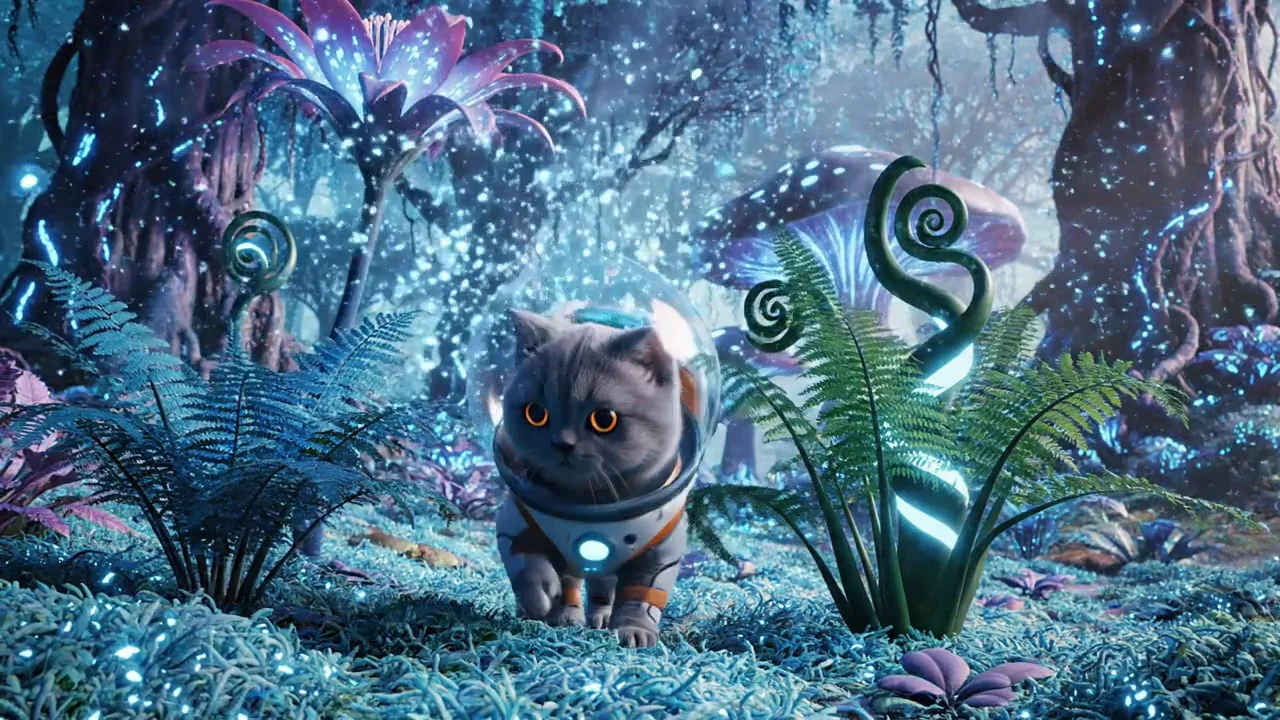
Start with a scene in your head. Describe the subject, action, light and camera movement, then choose a model to turn your direction into a moving image.
Try text to videoTurn your words, images and ideas into videos with cinematic movement. Choose your model, direct the scene and bring your next story to life with Jitura.
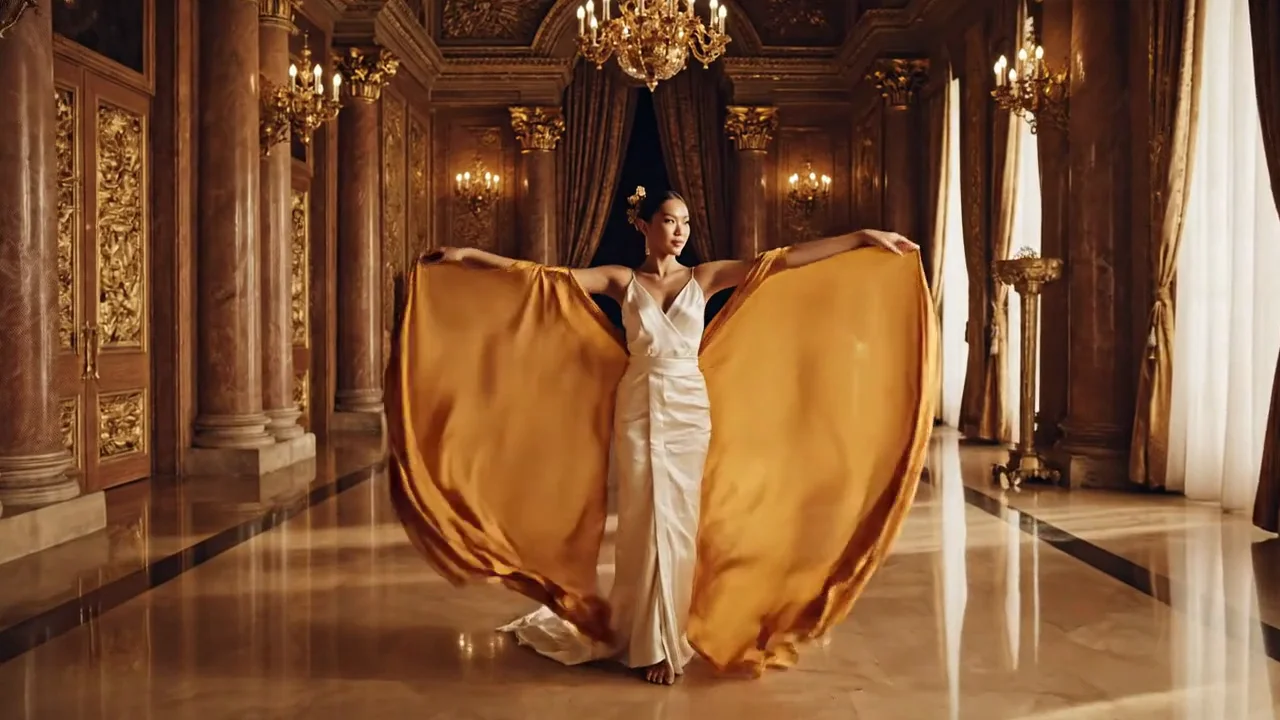
From a cinematic portrait to a product film or an animated world, start with an idea and give every scene its own direction.
Start with a scene in your head. Describe the subject, action, light and camera movement, then choose a model to turn your direction into a moving image.
Try text to video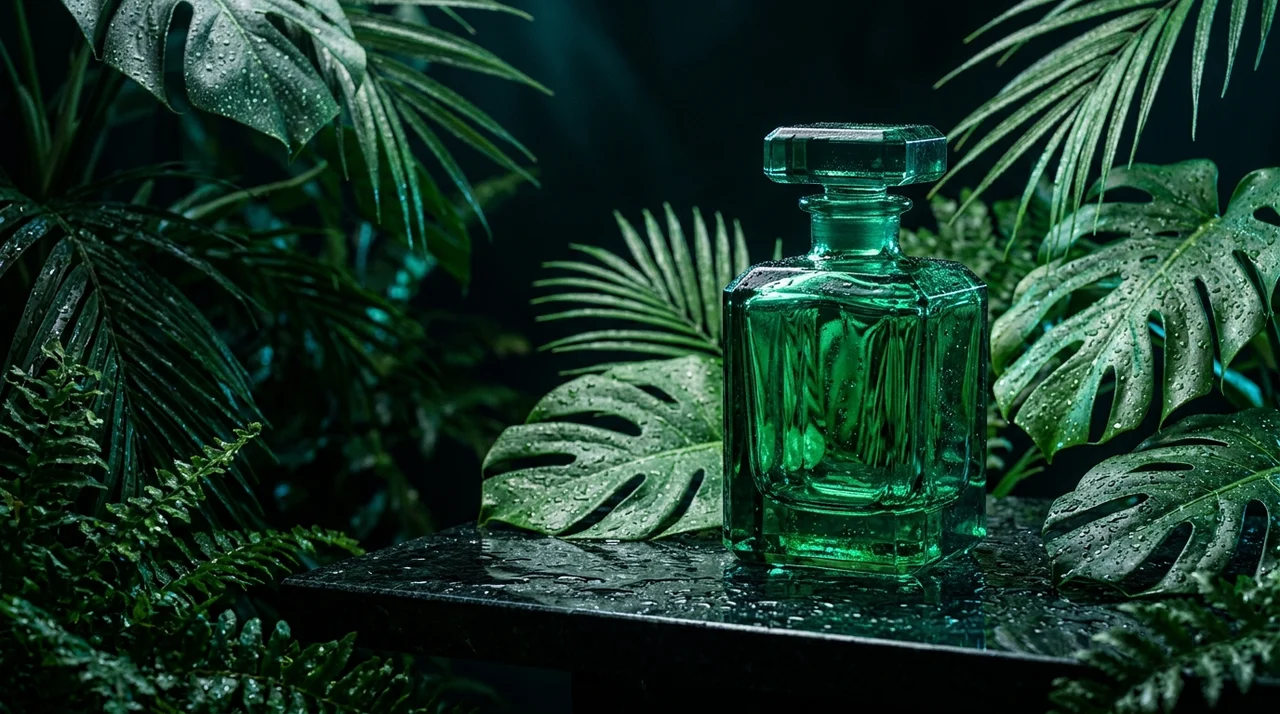
Turn a product photograph into a short film for a launch, online shop or social campaign. Add a camera move and describe the atmosphere you want around your product.
Animate an image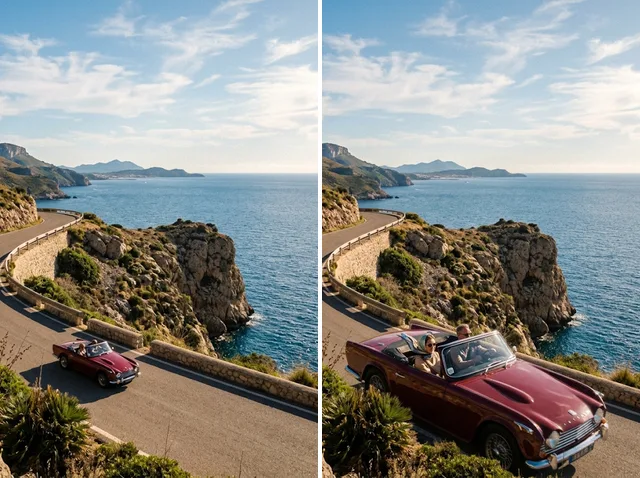
Upload a video and describe what happens next. Extend an existing scene, explore a new direction or refine your footage with the video editing tools.
Extend a video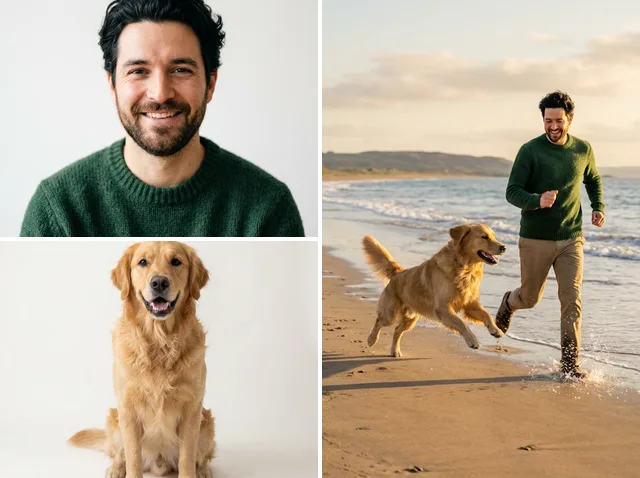
Bring reference images into your scene to guide its subjects and details. Choose a compatible reference model and describe the action, setting and mood.
Create with references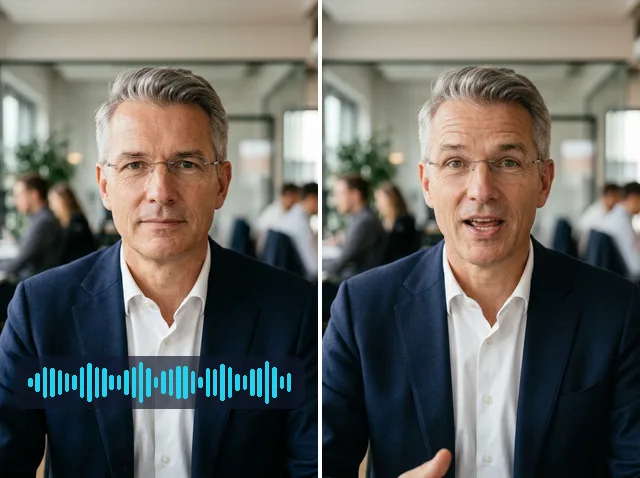
Pair a portrait with a speech recording to animate a presenter. Create a talking character or combine a presenter, product image and audio for your next demonstration.
Make a talking avatarChoose a familiar model or try a different approach. Each model has its own inputs, durations and creative possibilities.
View all video modelsOne place to explore stories, social content and product films.
Try camera directions, visual moods and characters before your next production.
Start creatingBuild short scenes for social posts, creative experiments and personal projects.
Start creatingExplore a visual campaign with atmospheric lighting and purposeful movement.
Start creating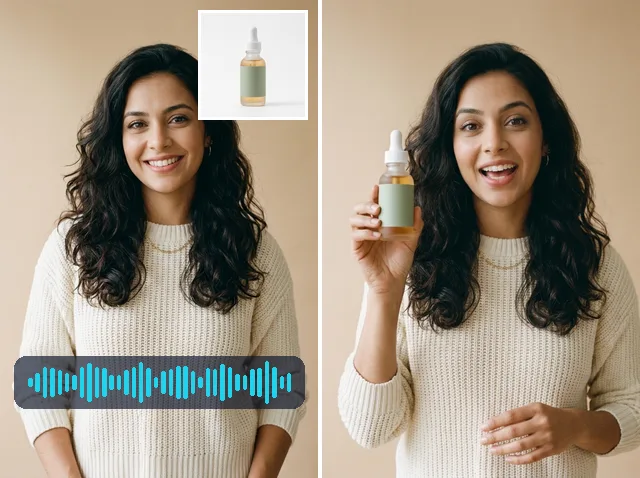
Animate your catalog photographs and bring your product presentation to life.
Start creatingUse reference images to develop a connected visual direction for your project.
Start creatingMove from your first idea to a finished project with focused video, avatar and audio workflows.
Start with a camera move, an animated character or a new visual style. Load a direction into the generator and make it your own.
A clear idea, the right inputs and a little direction.
Pick a workflow, then select a model that supports your inputs.
Write your scene and add an image, references or a recording when required.
Check the credit amount, start your generation and download the result when it is ready.
Create a reference image, animate a scene, give it a voice and refine your footage.
Describe the scene and direct the action, camera and atmosphere.
Try it nowChoose a tool to create a video, animate a presenter or generate audio.
Synchronise speech in an audio recording with the person in your video.
Open toolReduce video noise while preserving textures and the original resolution.
Open toolChange the video aspect ratio and generate consistent content around its edges.
Open toolRemove visible subtitles and restore the covered scene. Review the result for consistency.
Open toolDescribe the object to remove. The editor reconstructs the scene while preserving movement.
Open tool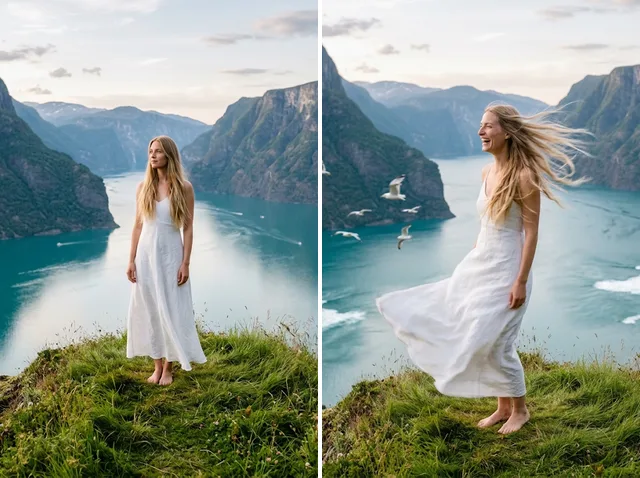 PhotoVideo
Animate an image with the movement and scene you describe.
Open tool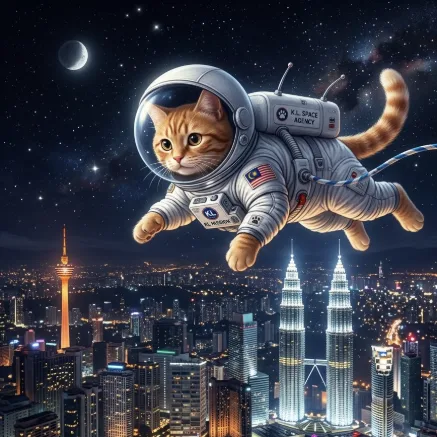
Describe your scene, camera movement and action to generate a video.
Open toolReferencesVideoKeep subjects from your reference images in a new video scene.
Open tool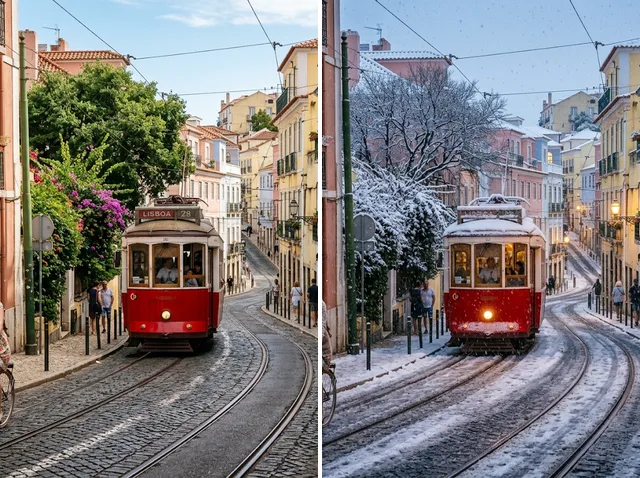 OriginalEdited
Describe what to change in your video. Optional references guide the edit.
Open tool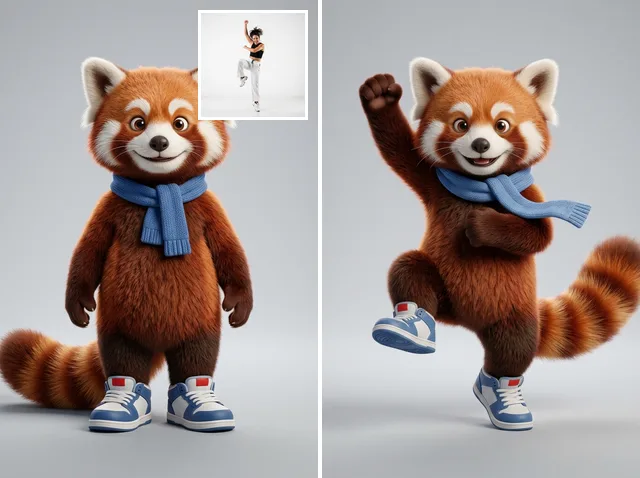 Character + motionResult
Transfer the movement from a video to your character image.
Open tool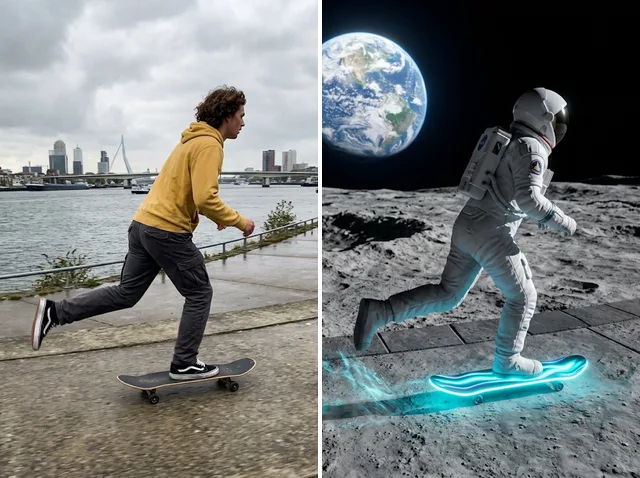 Your videoNew scene
Create a new scene using the movement and composition of your video.
Open tool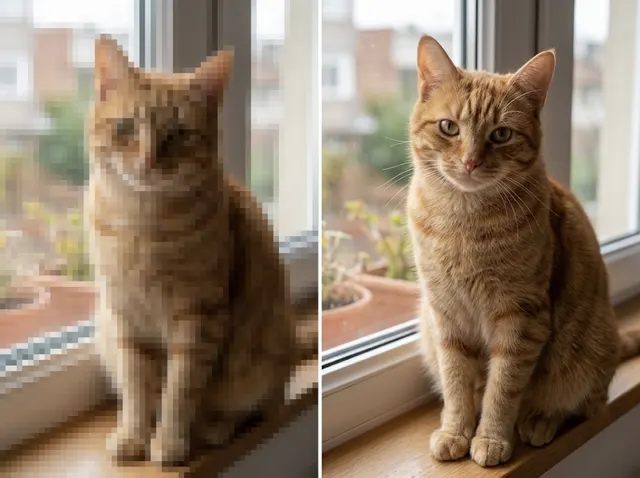 Original2× sharper
Increase video resolution by 2× while keeping the original content.
Open tool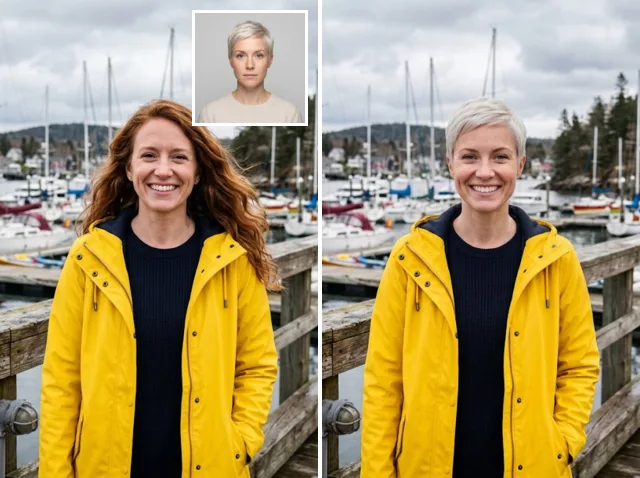 Video + faceResult
Replace the visible face with your character reference while preserving the scene and movement.
Open tool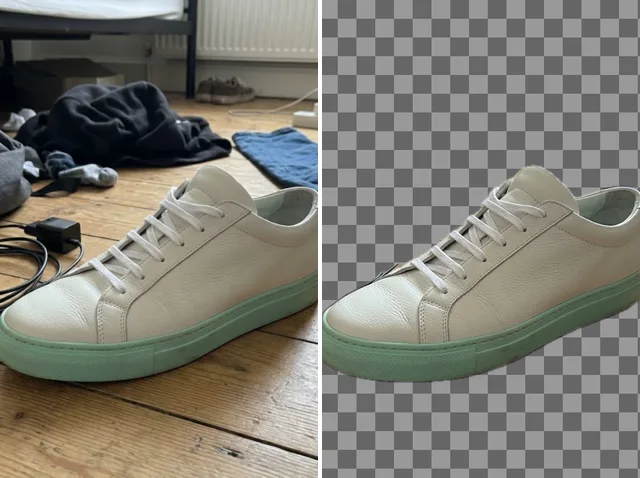 BeforeAfter
Remove the background and download a transparent WebM video.
Open toolYour clip+5 secondsContinue your video with five seconds of new action.
Open tool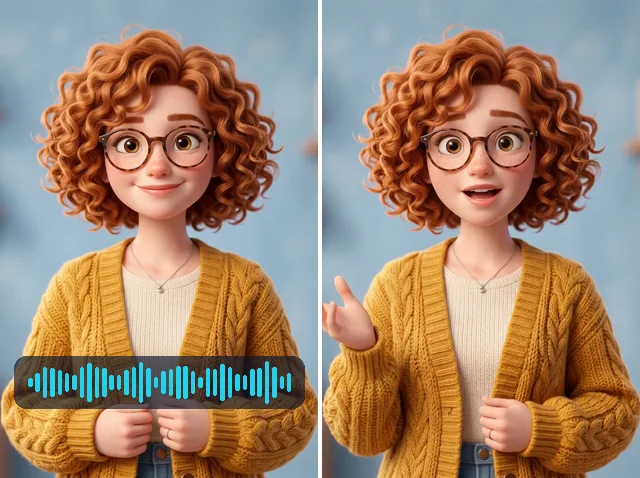 Character + audioTalking
Animate your character with the voice in your audio recording.
Open toolInputsResultCreate a presenter holding your product, then animate the presenter with your audio.
Open toolPortrait + speechTalkingSynchronise a portrait with your uploaded speech recording.
Open tool
Describe a voice and give it the words you want it to speak.
Open tool
Use a clear voice recording to generate speech in the same voice.
Open tool
Turn your text into spoken audio with a selected voice.
Open tool
Describe a sound to generate a five-second audio effect.
Open toolavailable video catalog models
focused video tools
avatar and audio workflows
Use VideoPrompt to prepare your subject, action and camera direction.
Create an image or upload a photograph to give your scene a starting point.
Use the audio tools to prepare speech and sound for your project.
Choose a Jitura plan for image and prompt operations. Video, avatar and audio generation have separate media credit requirements.
RM 0 / month
Explore your first ideas
Explore free planRM 29 / month
Make room for more creative work
View planRM 79 / month
Create together with five seats
View planJitura brings text-to-video, image-to-video and reference-to-video workflows together with video editing, avatar and audio tools. Choose a workflow, add your inputs and select the model and settings for your project.
The current catalog includes MiniMax H3 Max, Wan 3.0, Seedance 2.5, MiniMax H3, Seedance 2.0, Veo 3, Kling 3.0, Kling AI, Hailuo AI. Availability and supported inputs vary by provider. The composer shows the settings supported by your chosen model.
You can create a free account and explore the tools. Image and prompt operations have a daily allowance. Video, avatar and audio generation use separate media credits, with the required amount shown before generation. Check your balance and the pricing page before you create.
Choose Text to Video, Image to Video or Reference to Video in the composer. Enter a description and add the required inputs, select your model, duration and aspect ratio, then create. Sign in first so the job and result can be linked to your account.
Duration depends on the selected model. The composer only offers supported lengths. You can use Video Extender with an existing clip when you need to continue a scene.
Some video models support generated audio. An Audio option appears for compatible models. You can also create speech, clone a voice you have permission to use or generate sound effects with the audio tools.
Yes. Choose Image to Video, upload a supported photograph and describe the action or camera move. Required formats and upload limits are shown by the relevant tool.
Yes. Open AI Video Editor or Video to Video to work with an uploaded clip. Separate tools are available for upscaling, removing the background, extending a clip and transferring character motion.
Your words. Your references. Your direction.
Start creating with Jitura