OUTPUT DETAIL
Choose the finish for your scene
Match the model and its available settings to your delivery format. For a finished clip that needs a larger frame, open the existing video upscaler.
Explore this workflowDescribe a scene and bring it into motion. Choose your video model, set the camera direction and create your next product shot, character moment or visual story with Jitura.
Explore original Jitura motion studies, then load a direction into the generator for your own version.
Match the model and its available settings to your delivery format. For a finished clip that needs a larger frame, open the existing video upscaler.
Explore this workflow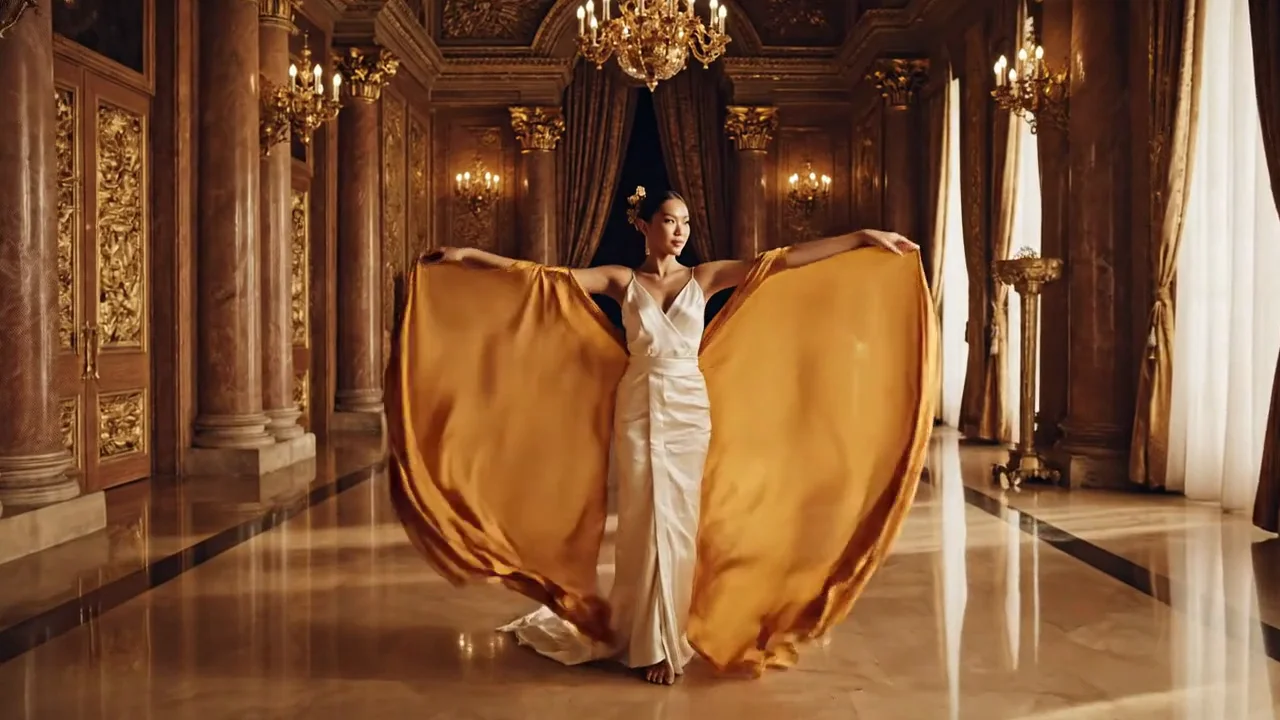
Describe a single camera move, the light and the setting. A gentle push-in or a steady tracking shot gives the model a focused direction.
Explore this workflow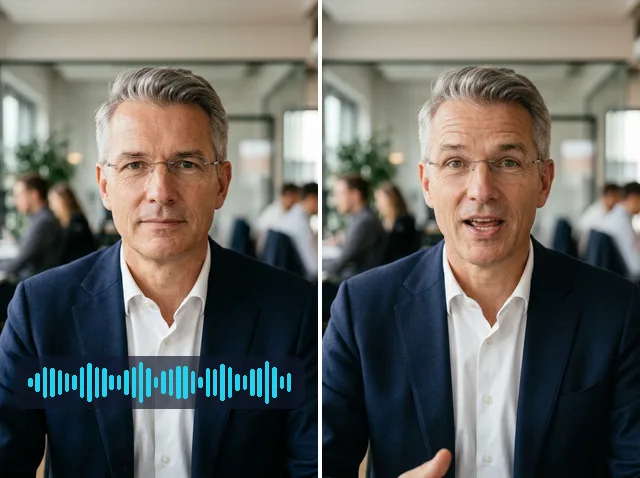
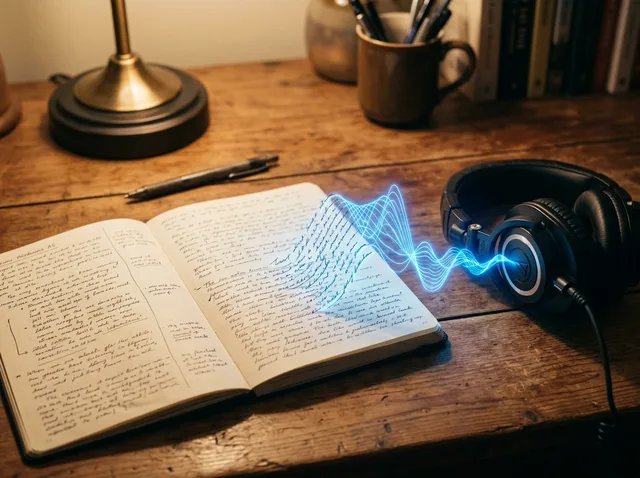
Describe what your character does and how the moment feels. Small actions make a scene easier to review and refine.
Explore this workflow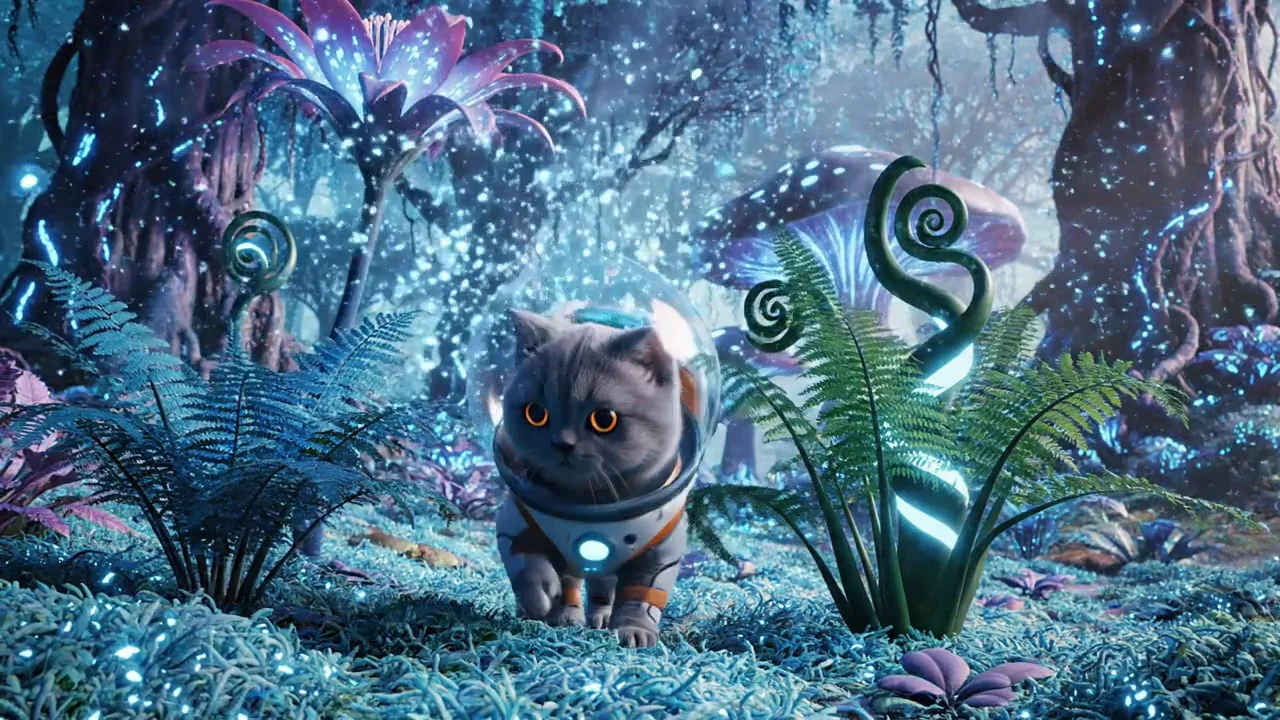
Keep the action manageable and avoid competing camera instructions. Review hands, edges and movement before choosing your final take.
Explore this workflow
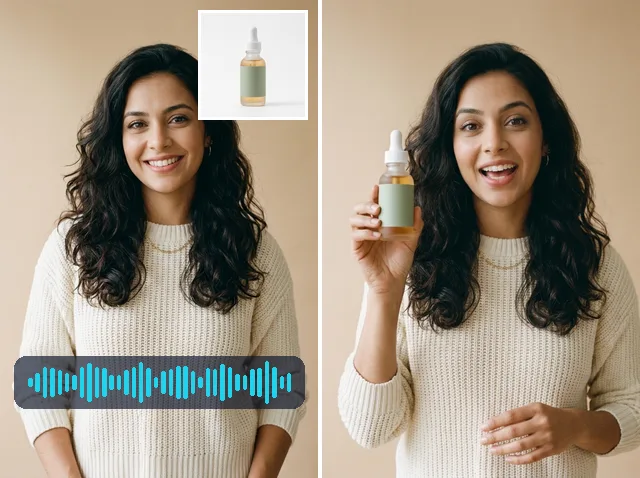
Name the clothing, materials and key visual details in your prompt. When an exact subject matters, use the existing reference-to-video workflow with your own images.
Explore this workflow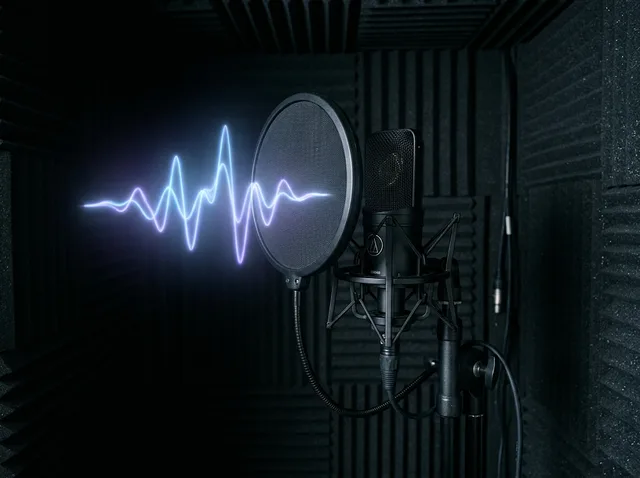
Use native audio where the selected model supports it, or prepare narration and sound through Jitura's existing audio tools.
Explore this workflowChoose from the currently available text-to-video catalog. Each model has its own supported settings.
Compare all video modelsExplore the direction that fits your next project.
Turn a short idea into a scene for your next reel or social post.
Compare visual concepts before committing to a larger production.
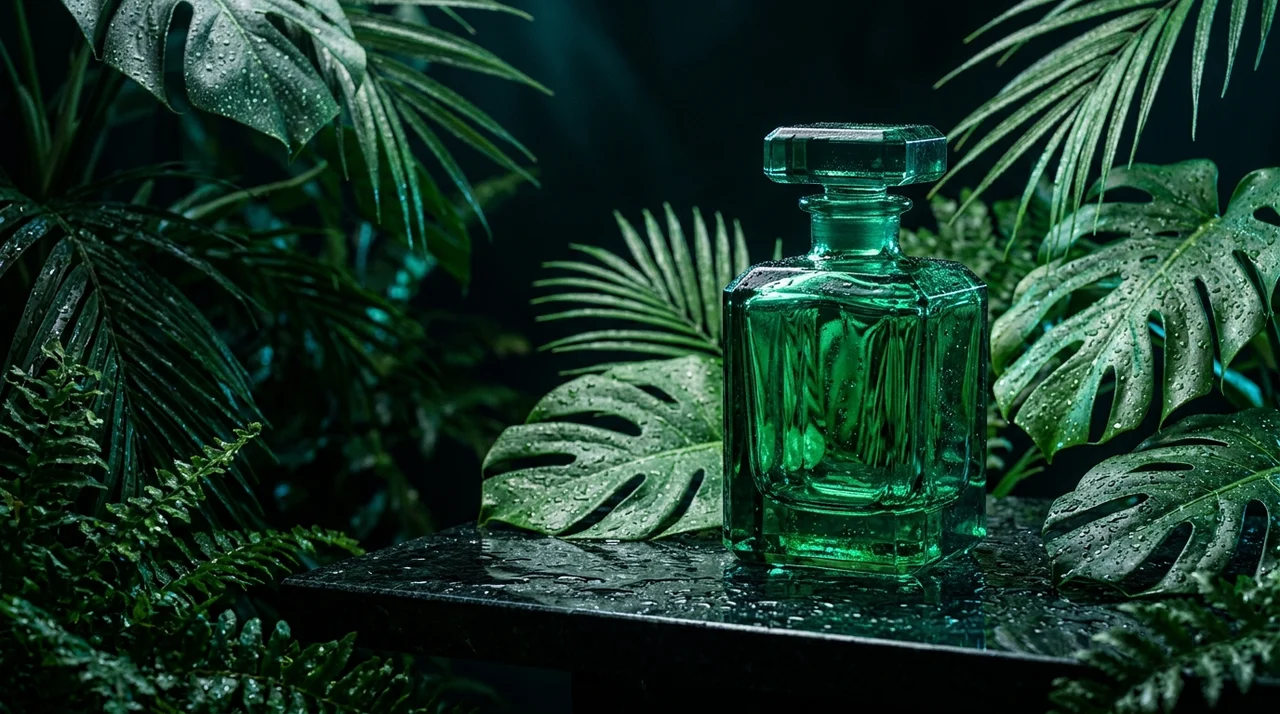
Describe its finish, setting and movement for a short showcase.
Visualise a character, location and action from a few considered lines.
Start with a ready-to-use prompt direction or open an existing video tool.
Explore all video toolsWrite the subject, action, setting and camera movement.
Select your model and settings. Check the credit amount before submitting.
Inspect the finished result, download it and refine your direction if needed.
Move from generation to references, performance and sound with existing Jitura tools.
Explore video, avatar and audio workflows.
Open toolPrepare a scene, compare the available models and continue with video or audio tools.
available text-to-video models
existing video workflows
ready-to-use prompt directions
A useful result starts with a clear brief and a careful check.
Look at faces, hands, product shapes and lettering. Use your own references when exact identity matters.
Watch the full clip for drift, abrupt changes or competing actions. Simplify the direction for your next take.
Review framing, sound and suitability before sharing. Keep the provider's terms and your asset rights in mind.
Jitura image and prompt operations belong to your plan. Video uses the separate media credits or account allowance shown before generation.
RM 0 / month
View planRM 29 / month
View planRM 79 / month
View planIt creates a video from a written scene using the model you select. Describe the subject, action, setting and camera movement in the existing generator.
Compare the models available in the selector. Duration, aspect ratio, audio and output options depend on the model; unavailable models are not offered for generation.
You can explore product concepts, character scenes, fashion moments and short visual stories. Review each result carefully before using it in a finished project.
Video has separate media credit requirements or an account media allowance. The generator shows the applicable amount before you submit a job.
Yes. Open Image to Video to animate a source image, or Reference to Video when you want several images to guide the subject.
Check the selected provider's terms and the rights to your prompt and any assets. Review the result for branding, likeness and suitability for your project.
The selected model and duration determine the generation estimate. Read the amount shown in the generator before submitting; this page does not promise free or unlimited videos.
Download the result and use Jitura's existing video editor, upscaler or other video tools for the next stage of your workflow.