

01
Modify Subject Appearance
Give a subject a different outfit, hairstyle or age. Describe the details to change and the identity and movement you want to preserve.
Model
Upload Video
Reference Images (Optional)
0/30Give your footage a new direction with a text prompt. Change the scene, refine a subject or add a visual effect.
Upload your footage and describe what you want to change. Keep your direction focused, then review the new scene before downloading.
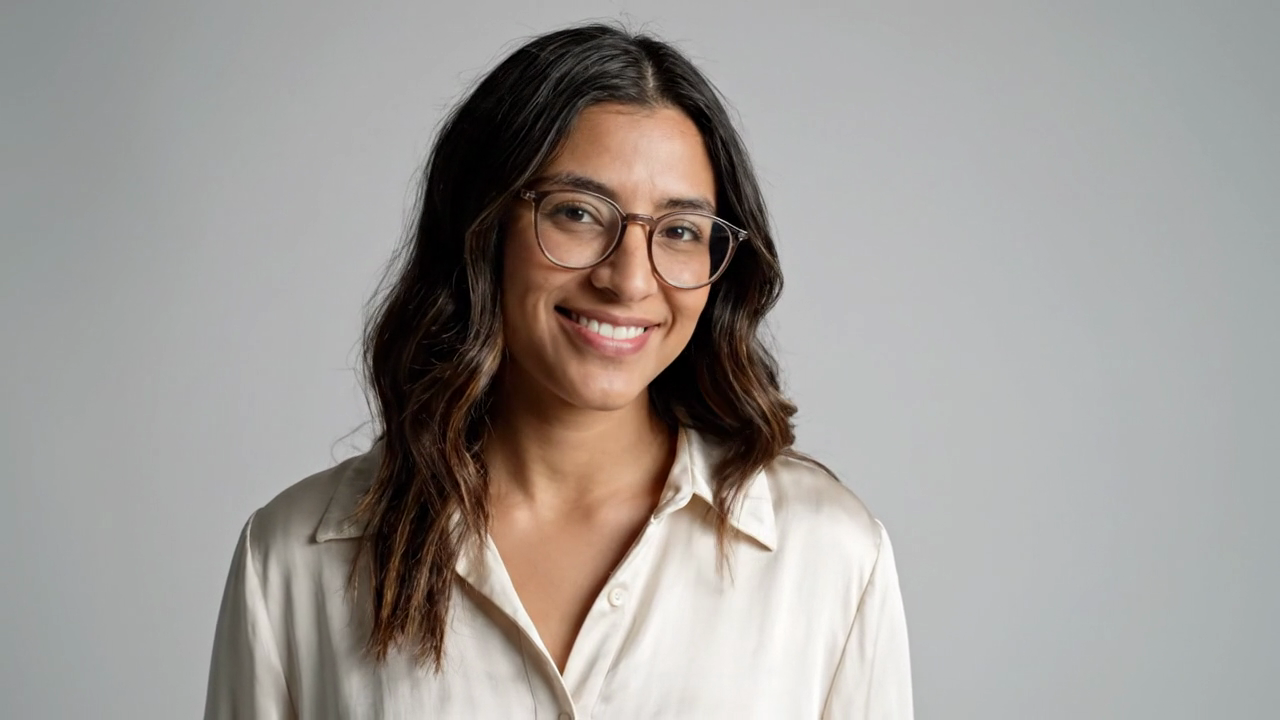
Replace the grey studio background with a tropical botanical garden. Preserve the woman, outfit and movement.
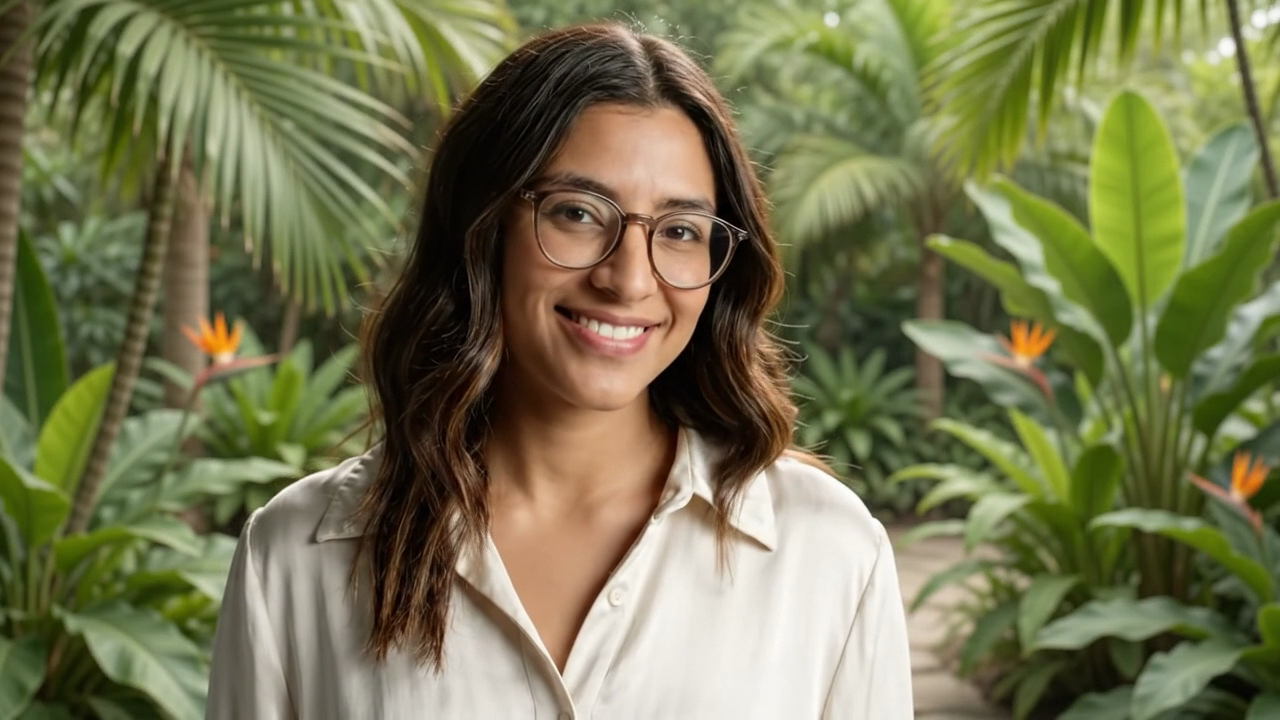
Give a subject a different outfit, hairstyle or age. Describe the details to change and the identity and movement you want to preserve.
Set a new mood with rain, evening light or cooler colours. Keep the action while giving the scene a different atmosphere.
Describe a cinematic effect or a new visual style. Add glowing particles, sparks or an animated treatment to your footage.
Remove a distraction from the scene and describe what should appear in its place. Review the result for consistent edges and motion.
Place your subject in another setting. Describe the new background, lighting and perspective so the scene holds together.
Explore a wider view or a different perspective. Tell the editor how the camera should move and which details should remain visible.
Original Jitura examples created in Google Flow using Veo 3.1 Lite and Omni 1.1 Flash. Choose an editing model in the Jitura panel. Results vary with the footage and editing model.
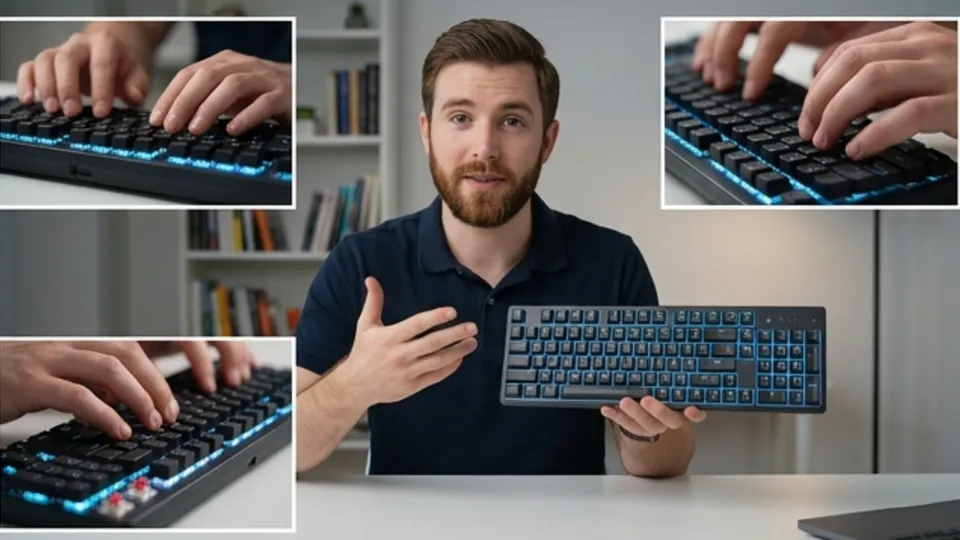
Clean up distractions, refresh a scene and prepare footage for your next short or social post.
Explore this workflowThree steps to give an existing clip a new direction.
Choose an MP4 or MOV clip up to 200 MB. Duration and reference limits depend on your selected model.
Write one clear direction. Identify what to change and the details you want the editor to preserve.
Review the credit amount and create your edit. Check the result, refine your prompt if needed and download the finished clip.
Move between images, video, avatars and audio as your project develops.
A single focused change makes the result easier to review and refine.
Start with a clear clip and references you have permission to use.
Check subject identity, edges, background details and movement in the finished edit.
It edits existing footage using a written description. Upload a video, specify your changes and review a newly generated version.
Choose a tool that accepts your footage, supports the changes you need and gives you clear pricing. Jitura offers multiple editing models with different duration, reference, audio and resolution options.
Creating an edit uses media credits. Sign in to see your balance and check the credit amount before submitting. Current plans are available on the pricing page.
Yes. Upload an MP4 clip of up to 200 MB and 30 seconds in your browser. No editing application is required.
Yes. Seedance 2.5 supports up to 30 optional images. Other models have different reference limits, shown in the panel.
Try social clips, product footage, advertising concepts and presentations. Use footage you have permission to edit and check the output before sharing.
Start with one clear change. Name the subject and the details to preserve, then refine your prompt after reviewing the result.
Your footage. Your prompt. Your next edit.