Skip to image to video generator
Jitura

Image to Video AI

Animate an image with the movement and scene you describe. Turn a photograph, product visual or illustration into your next moving moment with Jitura.

1

Give your image a moment worth watching

Start with a familiar visual and explore how a gesture, camera move or change in atmosphere can make it feel different.

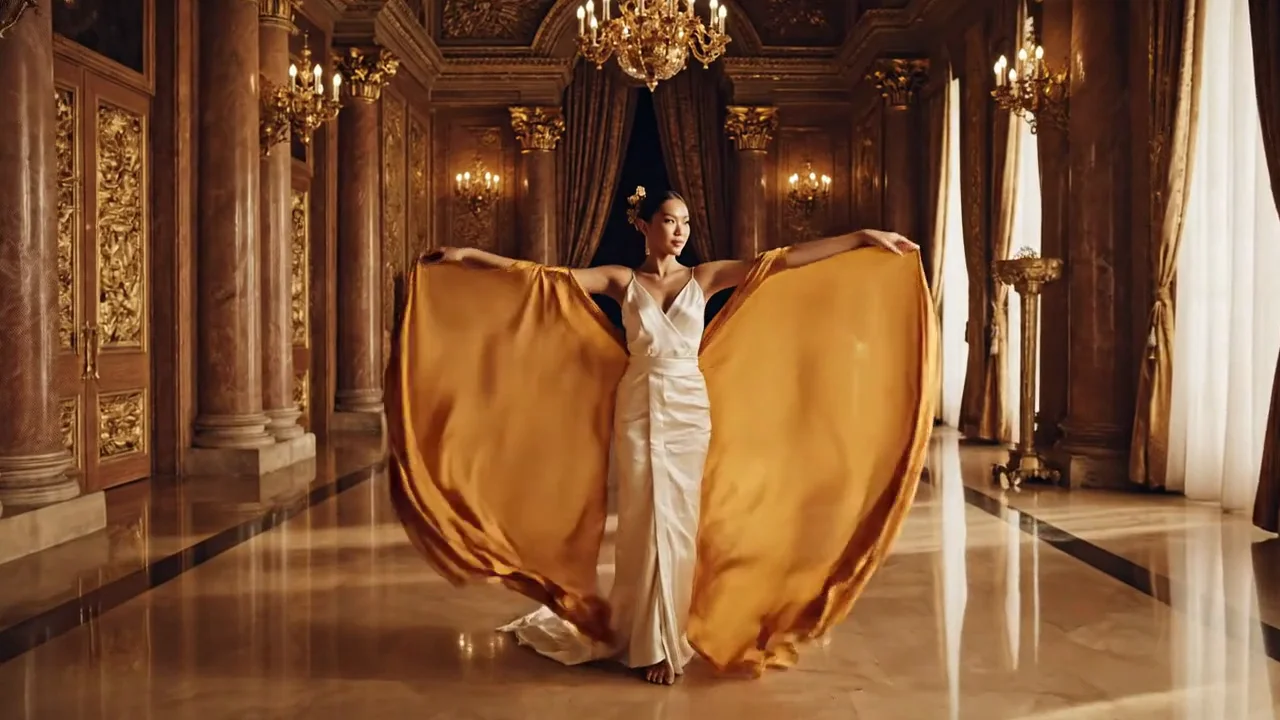
Original Google Flow motion study

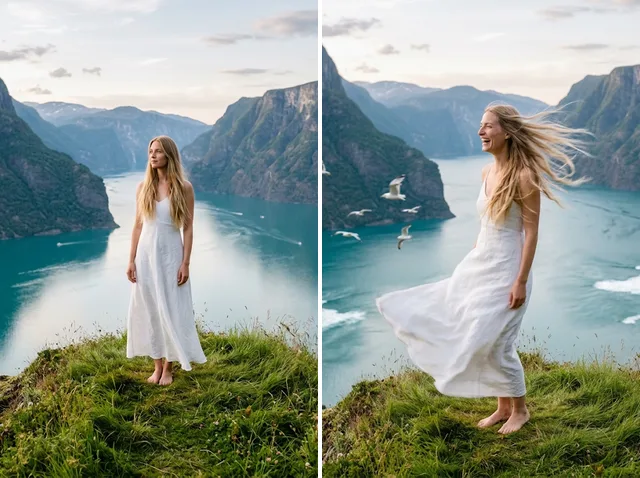
Portrait motion

Upload your own image to create your version.

Everything you need to direct your next image

Make the details part of the story
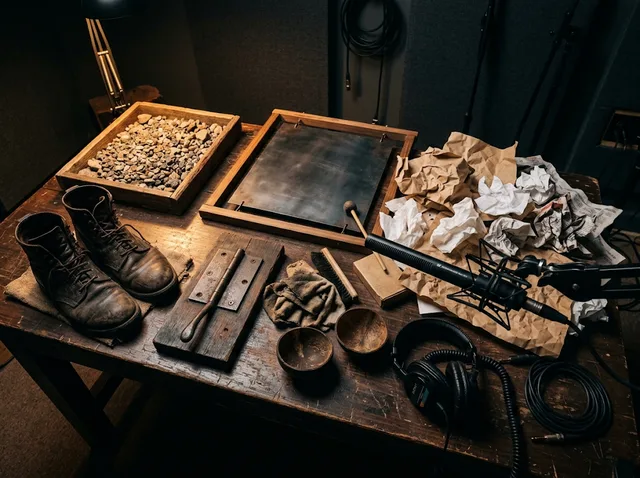
DETAIL AND TEXTURE

Make the details part of the story

Begin with a clear image and describe the light, texture and atmosphere you want to preserve. Choose a model for your shot, then use the video upscaler when your finished clip needs a larger output.

Explore video upscaling
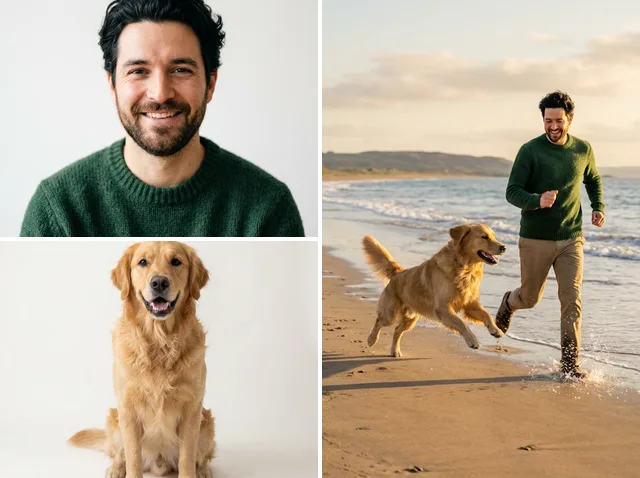
NATURAL MOVEMENT

Give your photograph a sense of life

Direct a small gesture, a breeze through fabric or a slow camera move. Keep one main action in focus so the movement supports your subject. For a performance reference, try Mimic Motion.

Explore motion references
CREATIVE DIRECTION

Describe the shot you want to see

Combine a subject, an action and a camera direction in a clear prompt. Set the pace and ending for a product reveal or a short story. Continue your completed shot with the video extender when you need another moment.

Continue a video
Keep your starting point in the picture
YOUR VISUAL REFERENCES

Keep your starting point in the picture

Use your uploaded image as the starting point for movement. When your scene needs several character, product or setting references, switch to the dedicated reference-to-video workflow.

Create with references
Let sound complete the moment
AUDIO AND VOICE

Let sound complete the moment

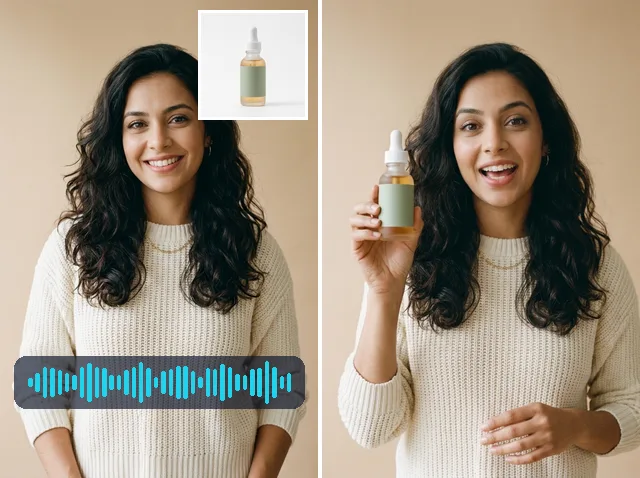
Compatible models expose an Audio control in the generator. Create separate narration, a character voice or sound effects with Jitura’s audio tools when your project needs a more specific sound.

Prepare a voiceover
MORE FROM ONE IMAGE

Explore another version of your visual

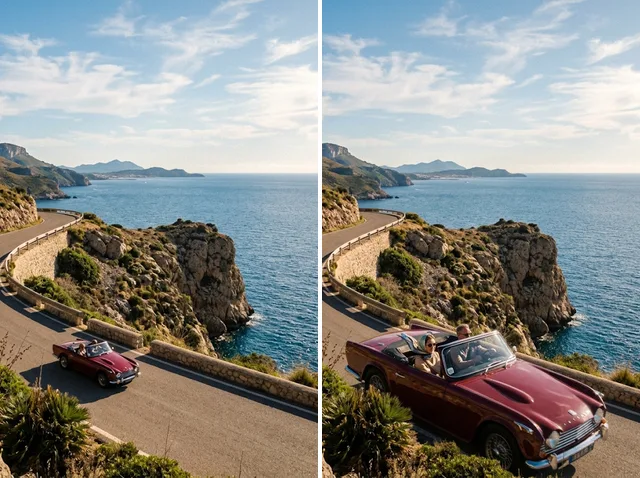
Try a different camera direction, pace or model with the same source image. Some models follow the uploaded image’s aspect ratio; others offer a ratio control. Refine completed footage with the video editor.

Refine your footage

Choose the model for your shot

Compare the available options, then bring your source image and direction to the generator.

Compare all video models

See where your images can take you

From a personal photograph to an early campaign idea.

Social creators
Social creators

A little movement for every feed

Turn a travel photo, portrait or creative idea into a moving moment between shoots.

Start with your image
Brand teams
Brand teams

Give a campaign its first scene

Explore a product reveal, seasonal mood or visual direction before planning a larger production.

Start with your image
Online sellers
Online sellers

Show your product from a new angle

Add a considered camera move to a product photograph and draw attention to its finish and shape.

Start with your image
Artists and designers

Let your artwork move

Build a moving reference from a character design, illustration or concept frame.

Start with your image
Filmmakers
Filmmakers

Share the feeling of a shot

Give collaborators a moving concept for a pitch, portfolio or early story discussion.

Start with your image

Take your finished clip further

Choose a focused tool to edit, extend, animate or add sound.

Explore the complete tool directory

How to turn your image into a video

Three steps from a still image to your next moving scene.

STEP 101

Add your image

Upload a portrait, product photograph or illustration in JPEG, PNG or WebP format.

STEP 202

Describe the moment

Write your action and camera direction, then choose a model and supported settings.

STEP 303

Generate and review

Check the media credit amount, generate your clip and download the finished result.

Create a video from your image

Explore another way to create

AI Video Generator

Explore video, avatar and audio workflows in one place.

Try this workflow

Make room for your next creative idea

9

available image-to-video catalog models

22

video, avatar and audio tools

3

steps from upload to review

Explore the Jitura gallery

A little direction makes a difference

Begin with a clear subject

Give the model a well-defined portrait, product or illustration with space around the action.

Keep one main movement

Start with a gesture or camera move and describe the pace and ending for that moment.

Review before your next version

Check the result for subject detail and movement, then adjust the direction for another generation.

Plans for your creative routine

Image and prompt operations belong to your Jitura plan. Video generation uses separate media credits or the media allowance shown for your account.

free

RM 0 / month

View plan
  • 5 shared AI operations per day
  • Prompt frameworks and templates
  • Media credits shown before generation

team

RM 79 / month

View plan
  • 500 shared AI operations per day per seat
  • Prompt frameworks and templates
  • Media credits shown before generation

Image to video questions

What is Jitura image to video?

It turns an uploaded image into a video using your motion description and selected model. The existing generator handles your upload, model settings, credit estimate and finished download.

How do I choose a model?

Choose an available model in the composer. Its supported durations, ratio behavior and audio options appear with the selection. Availability and credit requirements can differ between models.

What should an image to video prompt include?

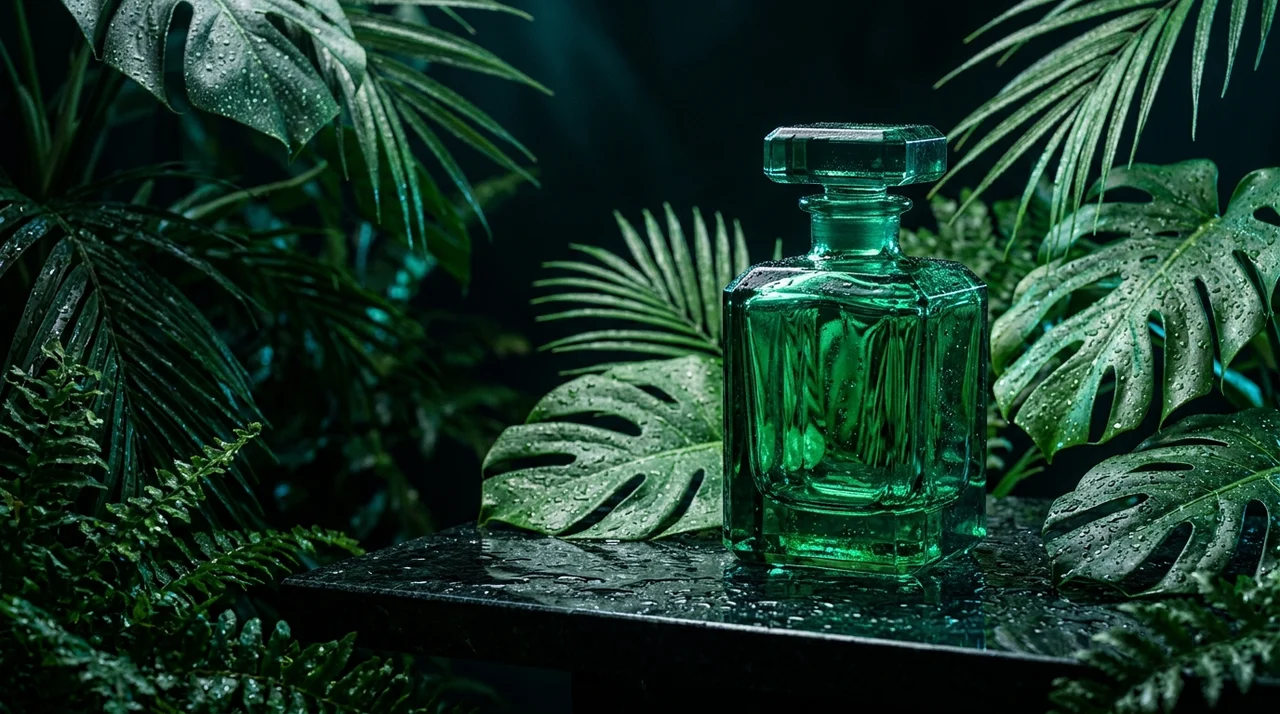
Describe one main action, a camera move, the pace and the ending. For example, ask for a gentle camera orbit around a bottle while reflections move across the glass.

Which image formats can I upload?

The upload accepts JPEG, PNG and WebP images. Use a clear subject with enough space for the movement you describe. The upload process checks the file before generation.

Can I create a video for free?

Video generation uses the media credits or media allowance shown for your account. Jitura plan operations and video media credits are separate. Check the amount beside Generate before starting.

Can my generated video include sound?

Models that support audio display an Audio control. You can also prepare narration and sound effects with the dedicated Jitura audio tools.

How many images can I upload?

The image-to-video workflow takes one source image. Use Reference to Video when you need multiple reference images. Input limits depend on the workflow you select.

Does the video keep my image’s shape?

Some models use the uploaded image’s aspect ratio. For other models, the composer offers supported ratio choices. The controls change when you select a different model.

What should I avoid in my prompt?

Avoid fitting several unrelated actions or scene changes into one short clip. Start with a clear subject and one movement, then describe a camera move that supports it.

How is this different from Text to Video and Reference to Video?

Image to Video animates a source image. Text to Video begins with a written scene. Reference to Video uses reference images to guide subjects in a new scene.

Bring your next image to life.

Give your visual a subject, a movement and a direction.

Create your next image to video