Skip to reference video generator
Jitura
YOUR REFERENCES. ONE NEW SCENE.

Reference to Video AI

Bring your character, product and scene references into a moving moment. Upload your images, describe the action and direct the next scene with Jitura.

Up to 4 reference images · JPEG, PNG or WebP · Model settings vary

Bring the details of your subject into the next scene
Visual references
Concept reference 1
EXAMPLE DIRECTION

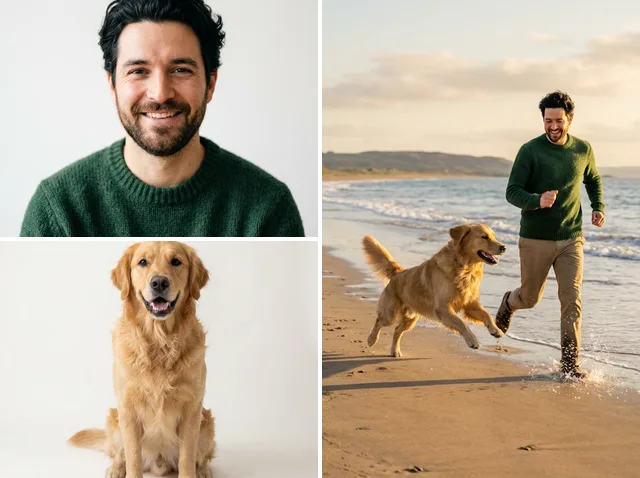
The man in the green sweater and his golden retriever walk together along the shoreline. Keep their recognizable appearance, soft evening light, a gentle tracking shot.

Concept illustration · upload your own references to create a video
A FAMILIAR SUBJECT

Bring the details of your subject into the next scene

Start with clear reference images of the character, object or place you want in your video. Describe the identifying details that matter and review how the selected model carries them into the shot. Results vary by model and direction.
Bring your references into a shared scene
Visual references
Concept reference 1Concept reference 2
EXAMPLE DIRECTION

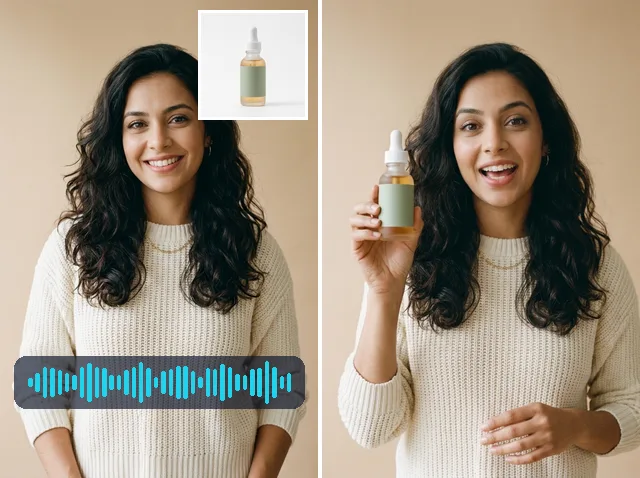
A presenter introduces the referenced product in a softly lit studio. Preserve the product shape and the presenter's appearance, relaxed movement, slow camera push-in.

Concept illustration · upload your own references to create a video
CHARACTERS, OBJECTS AND PLACES

Bring your references into a shared scene

Give each image a role in your direction. Tell the model who is in the shot, where the scene takes place and how your subjects interact. Keep the action focused so the references support one clear moment.

Explore another world for your main character
Visual references
Concept reference 1Concept reference 2
EXAMPLE DIRECTION

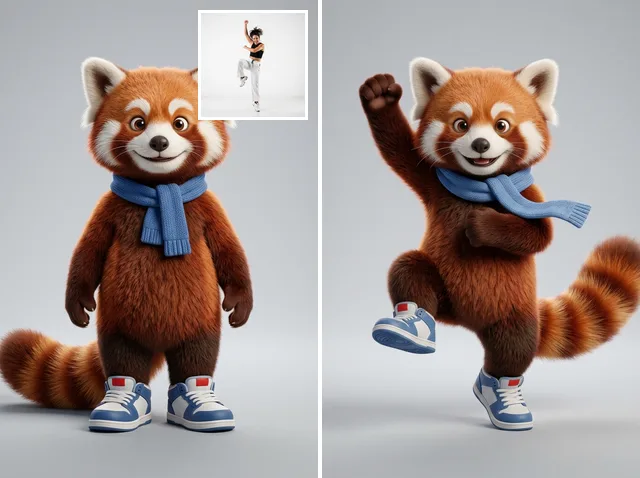
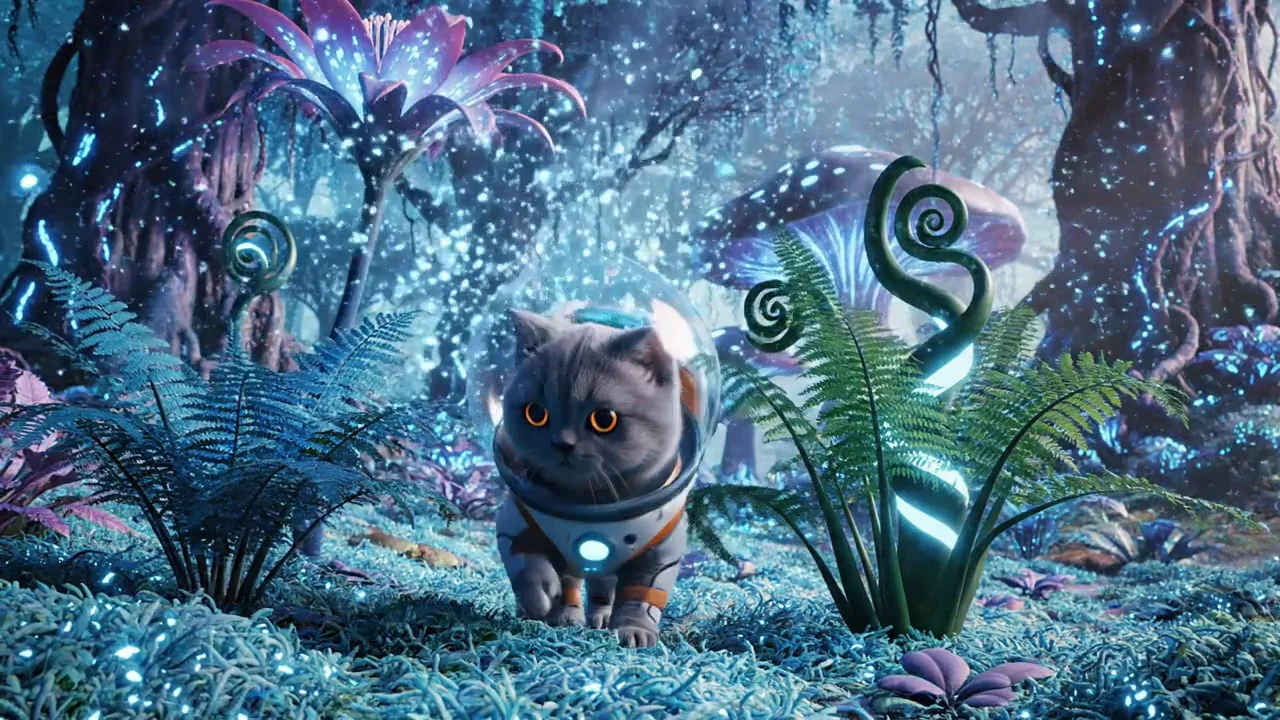
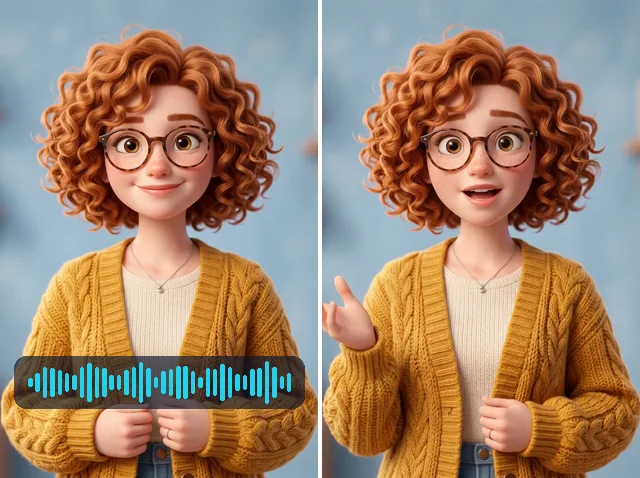
Place the referenced character in a luminous blue forest at dusk. Keep the character design recognizable, drifting particles, a small look around, one continuous shot.

Concept illustration · upload your own references to create a video
A NEW SETTING

Explore another world for your main character

Use a familiar character or product reference and describe a different setting around it. Try a new atmosphere, camera angle or time of day while giving the model a clear starting point for your subject.

Build a scene from several visual ideas
Visual references
Concept reference 1Concept reference 2
EXAMPLE DIRECTION

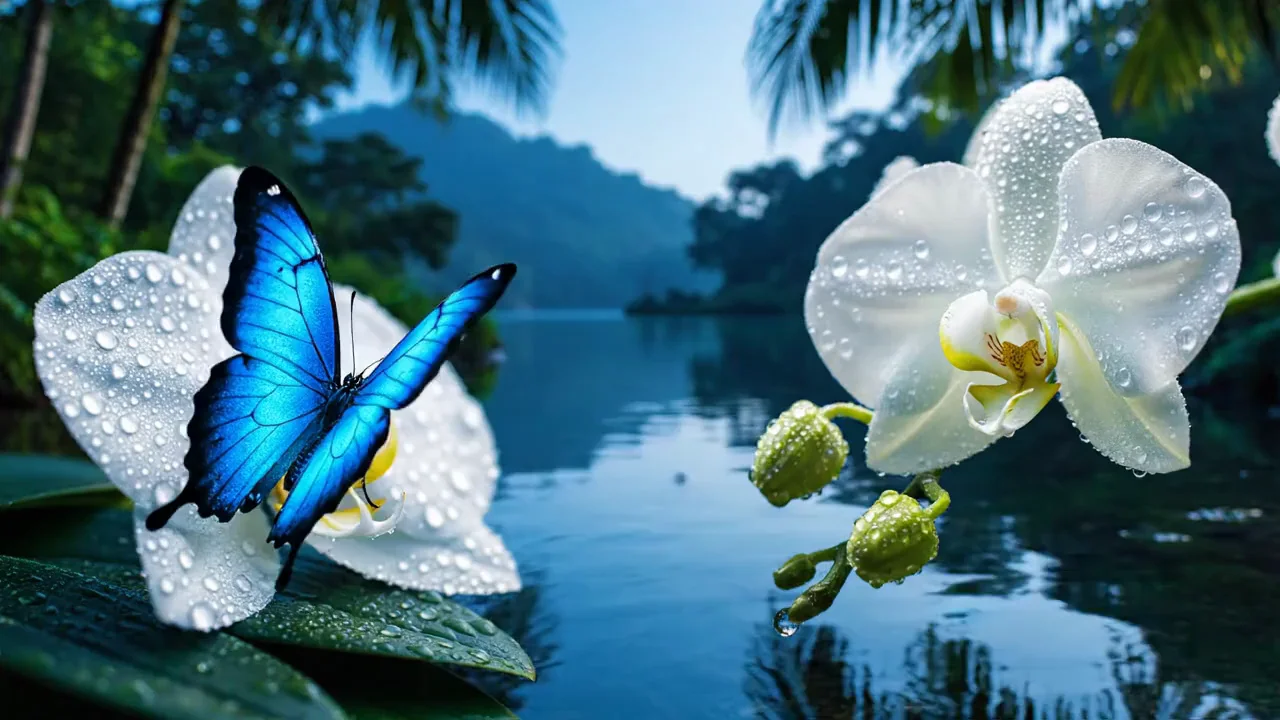
The referenced person and dog pause beside a tranquil tropical lagoon. Keep both subjects recognizable, a light breeze, subtle ripples, slow lateral camera movement.

Concept illustration · upload your own references to create a video
ONE CONNECTED DIRECTION

Build a scene from several visual ideas

Combine your character, object and environment references in a single direction. Reference to Video guides a new generated scene; it does not automatically join your uploaded images into an edited slideshow.

Give every reference a part in your story
Visual references
Concept reference 1
EXAMPLE DIRECTION

The referenced astronaut character takes a curious step through the blue jungle. Preserve the character design, expressive but gentle motion, soft cinematic lighting.

Concept illustration · upload your own references to create a video
YOUR NEXT CREATIVE IDEA

Give every reference a part in your story

Explore a social scene, product concept or animated story using the visual material you already have. Keep the composition, movement and ending in your prompt, then compare a new version when you want another direction.

Describe natural movement for the whole scene
Visual references
Concept reference 1
EXAMPLE DIRECTION

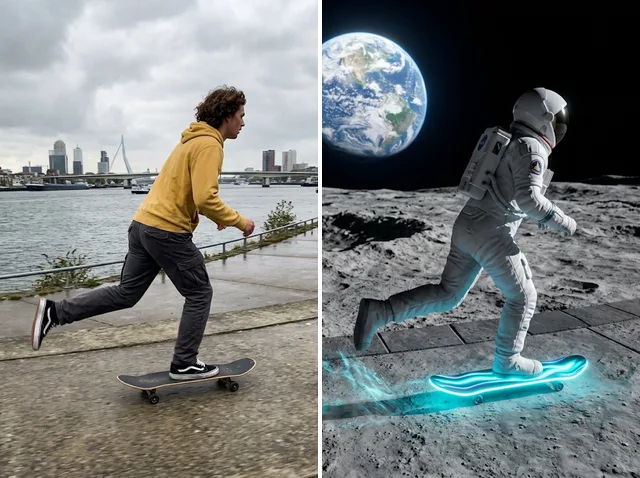
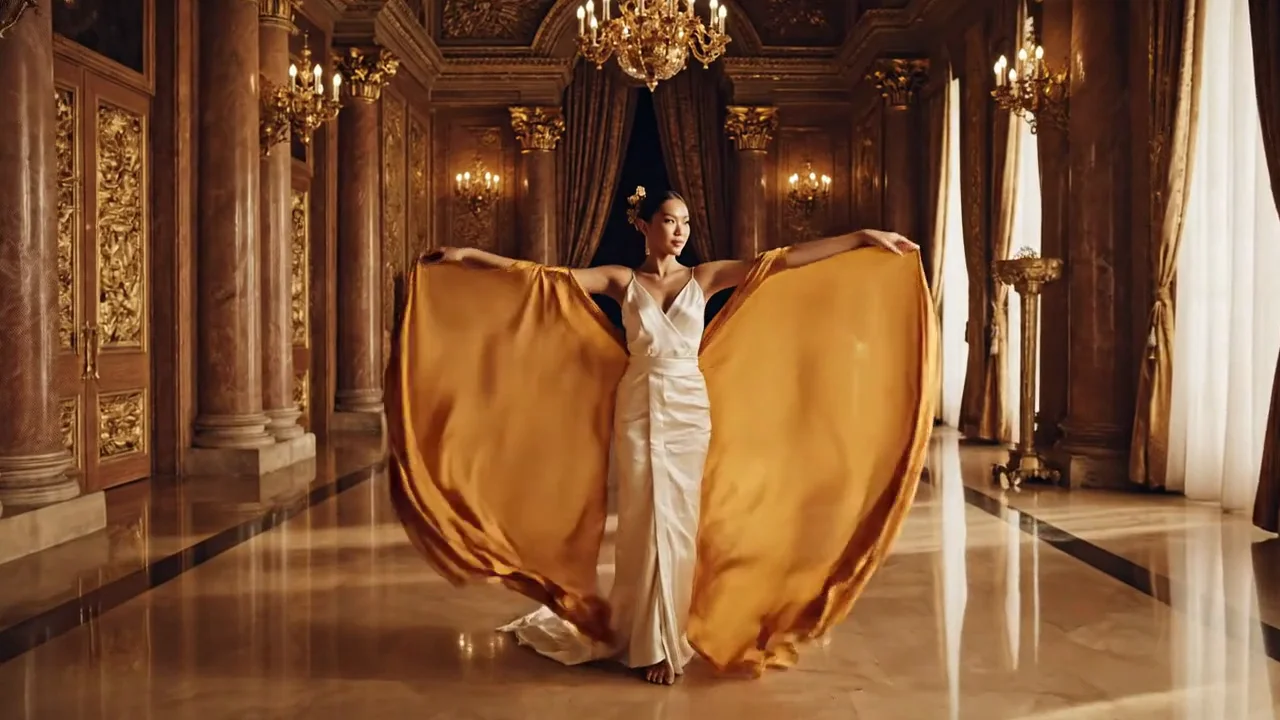
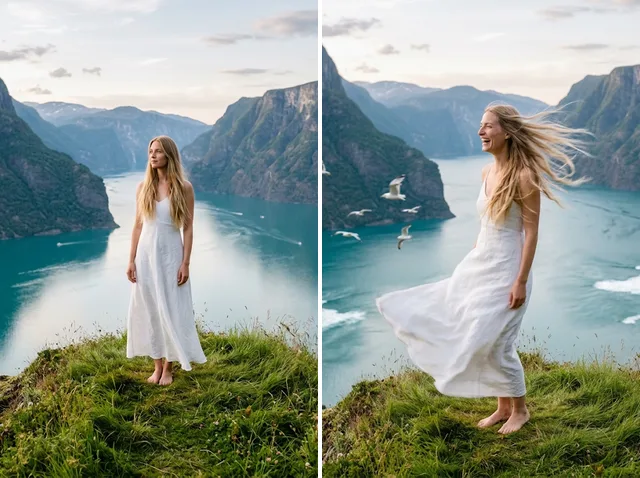
The referenced subject turns gently toward the camera as fabric moves in a soft breeze. Preserve the outfit and facial details, warm light, a slow steady push-in.

Concept illustration · upload your own references to create a video
MOTION WITH INTENTION

Describe natural movement for the whole scene

A reference supplies visual context. Your prompt supplies the action and camera direction. Describe a small gesture, an environmental movement and a steady camera path; use the available duration, ratio and audio settings for your selected model.

A reference workflow for the way you create

From a recurring character to a product concept, begin with the visuals you already know.

Video editors
Video editors

Prepare a connected visual direction

Bring recurring subjects and visual references into your next shot. Review the output before adding it to a larger edit.

Explore this workflow

How to create a video with your references

Three steps to turn a collection of visual ideas into one clear direction.

Character and companion references with an illustrated shoreline scene REFERENCES → A NEW SCENE
01
STEP 1

Upload your references

Add up to four clear images showing the characters, objects or setting you want to guide the shot.

02
STEP 2

Describe the scene

Explain each reference's role, the details to preserve and one main action. Choose a supported model and review its settings.

03
STEP 3

Create and review

Check the media credit amount, generate your video and review the subject details and motion before downloading.

Create with your references

Choose a model that supports reference images

Make room for your next creative idea

Explore Jitura’s connected video, avatar and audio workflows.

5

available reference-video catalog models

4

reference images supported by this workflow

22

video, avatar and audio tools

Explore the Jitura gallery

A clear reference makes a stronger starting point

Use these checks to refine your direction before the next generation.

Make each image useful

Choose sharp images with a clear subject. Give the model complementary information instead of several conflicting versions.

Name the details that matter

Describe the outfit, product shape or character design you want to preserve, then keep the main movement focused.

Review every finished shot

Check faces, hands, packaging text and motion. Refine the direction before using a result in a larger project.

Reference to video questions

What is Jitura Reference to Video?

It uses your uploaded reference images and written direction to guide a new generated video. References can show a character, product or scene. The result depends on the selected model, source images and prompt.

How does the reference workflow work?

Upload your reference images, describe the subjects and action, and choose a compatible model. Review the duration, aspect ratio and any Audio control, then check the media credit amount before generation.

Can I use Reference to Video for free?

Sign in to see your account's media allowance and credits. Video generation uses the media credit requirements displayed in the composer. A Jitura image or prompt plan does not by itself promise unlimited video generation.

What can I create with my references?

You can explore character scenes, product concepts, environments and visual story ideas. Clear images and a focused prompt help communicate the shot. Subject consistency is a goal of the workflow and is not a guarantee of identical details in every frame.

How do I describe several references?

Explain the role of each reference and the details to preserve, then describe one main action, the setting and camera movement. If precise packaging text or facial detail matters, review the finished result carefully.

How many reference images can I upload?

The current Jitura reference workflow accepts up to four images in JPEG, PNG or WebP format. Model support and available settings vary. Image to Video is a separate workflow for animating one source image.

Give your references a new scene.

Your subjects. Your setting. Your direction.

Start your reference video